2025. 11. 1. 16:57ㆍCICD
실습 환경 구성
- Jenkins 및 gogs 설치(Docker Container)
# 작업 디렉터리 생성
mkdir cicd-labs
cd cicd-labs

cat <<EOT > docker-compose.yaml
services:

  jenkins:
    container_name: jenkins
    image: jenkins/jenkins
    restart: unless-stopped
    networks:
      - cicd-network
    ports:
      - "8080:8080"
      - "50000:50000"
    volumes:
      - /var/run/docker.sock:/var/run/docker.sock
      - jenkins_home:/var/jenkins_home

  gogs:
    container_name: gogs
    image: gogs/gogs
    restart: unless-stopped
    networks:
      - cicd-network
    ports:
      - "10022:22"
      - "3000:3000"
    volumes:
      - gogs-data:/data

volumes:
  jenkins_home:
  gogs-data:

networks:
  cicd-network:
    driver: bridge
EOT

# 배포
docker-compose up -d
docker-compose ps

# 기본 정보 확인
for i in gogs jenkins ; do echo ">> container : $i <<"; docker compose exec $i sh -c "whoami && pwd"; echo; done

# 도커를 이용하여 각 컨테이너로 접속
docker compose exec jenkins bash
exit

docker compose exec gogs bash
exit



Jenkins 컨테이너 초기 설정
# Jenkins 초기 암호 확인
docker compose exec jenkins cat /var/jenkins_home/secrets/initialAdminPassword

# URL 접속
open "http://127.0.0.1:8080"

# (참고) 로그 확인 : 플러그인 설치 과정 확인
docker compose logs jenkins -f
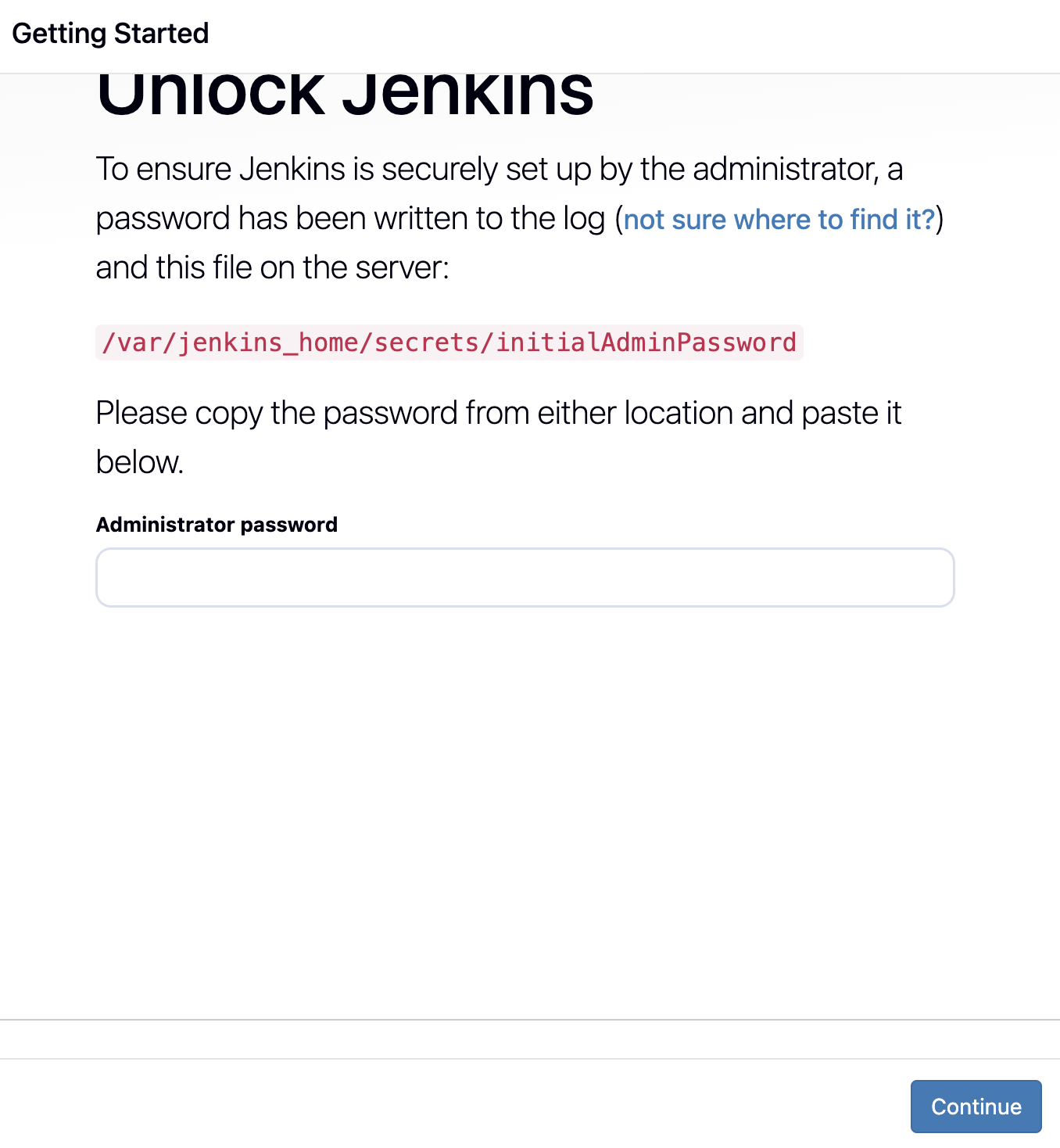
- Jenkins 초기 화면(패스워드 입력)
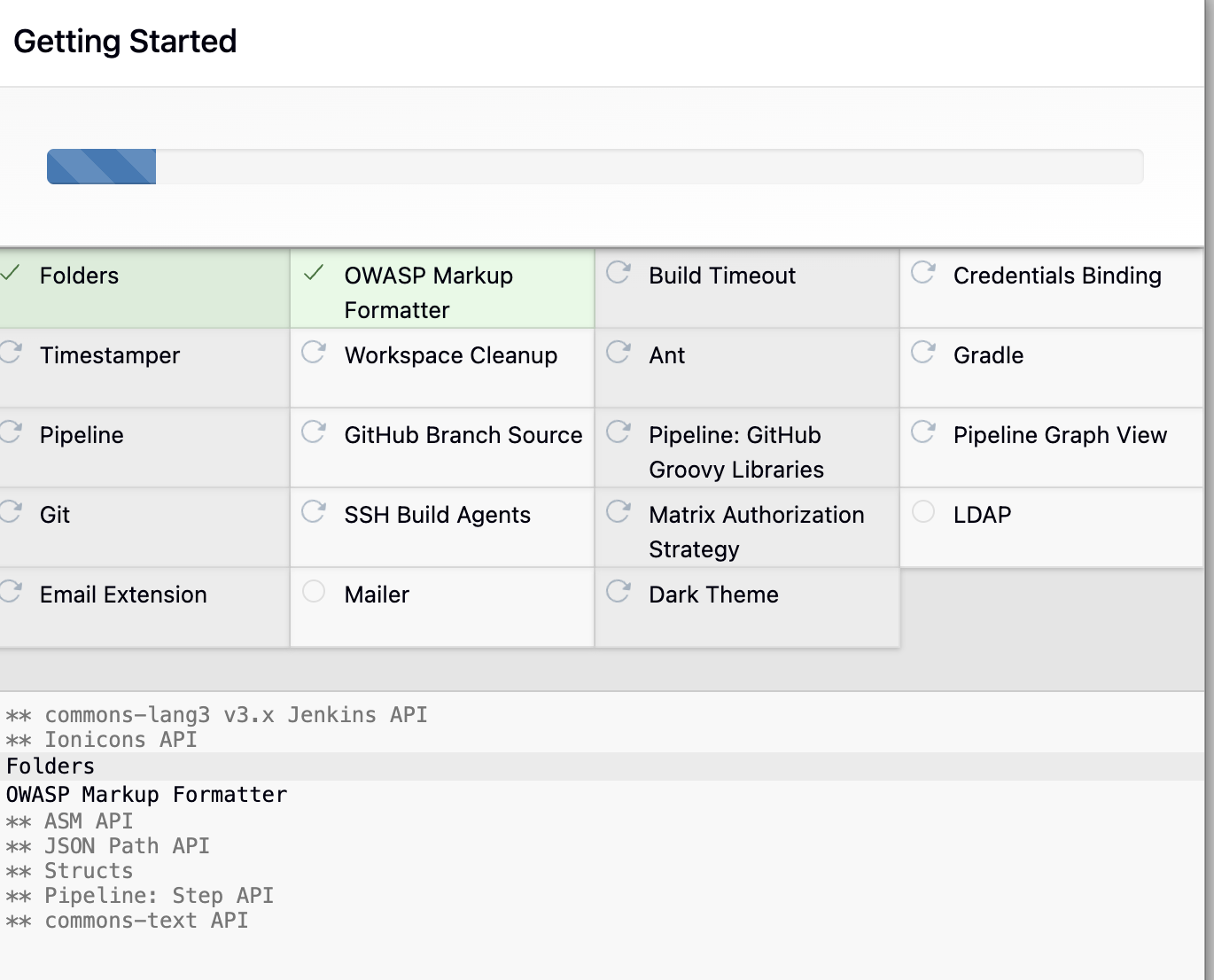
- Jenkins 플러그인 설치 화면(Install Suggested Plugin 이후)
- Jenkins 도커 컨테이너 로그 확인
- Jenkins 계정(admin) 생성

- Jenkins 접속 URL 설정
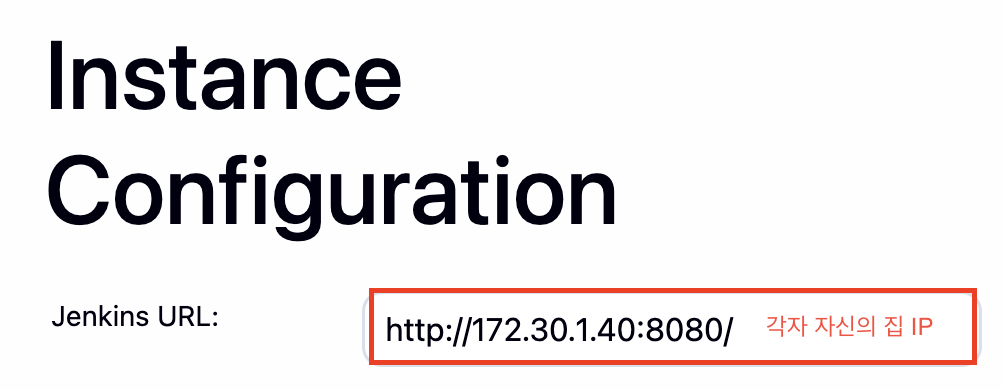
- 접속 확인(PC에서 사용 중인 사설 IP로 테스트)

- Jenkins 컨테이너에서 호스트에 도커 데몬 사용 설정(Docker-out-of-Docker)
docker compose exec --privileged -u root jenkins bash
# docker.asc 다운로드 및 읽기 권한 설정
curl -fsSL https://download.docker.com/linux/debian/gpg -o /etc/apt/keyrings/docker.asc
chmod a+r /etc/apt/keyrings/docker.asc
#
echo \
  "deb [arch=$(dpkg --print-architecture) signed-by=/etc/apt/keyrings/docker.asc] https://download.docker.com/linux/debian \
  $(. /etc/os-release && echo "$VERSION_CODENAME") stable" | \
  tee /etc/apt/sources.list.d/docker.list > /dev/null

# 도커 다운로드
apt-get update && apt install docker-ce-cli curl tree jq yq gh -y

# 도커 사용 확인
docker info
docker ps
which docker
# Jenkins 컨테이너 내부에서 root가 아닌 jenkins 유저도 docker를 실행할 수 있도록 권한을 부여
groupadd -g 2000 -f docker  # macOS(Container)

# docker.sock 그룹 변경
chgrp docker /var/run/docker.sock
ls -l /var/run/docker.sock

# jenkins 유저 그룹 변경
usermod -aG docker jenkins
cat /etc/group | grep docker

exit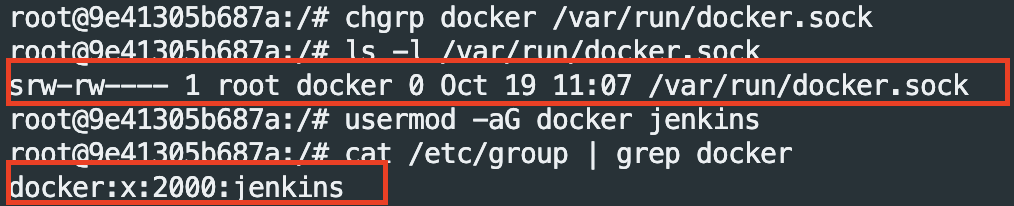
# jenkins item 실행 시 docker 명령 실행 권한 에러 발생 :
#Jenkins 컨테이너 재기동으로 위 설정 내용을 Jenkins app 에도 적용 필요
docker compose restart jenkins

# jenkins 유저로 도커 명령어 실행
docker compose exec jenkins id
docker compose exec jenkins docker info
docker compose exec jenkins docker ps
Gogs 컨테이너 초기 설정(Private Repo 생성 - 개발, 운영 repo)
- 초기 접속
open "http://127.0.0.1:3000/install"- 초기 설정


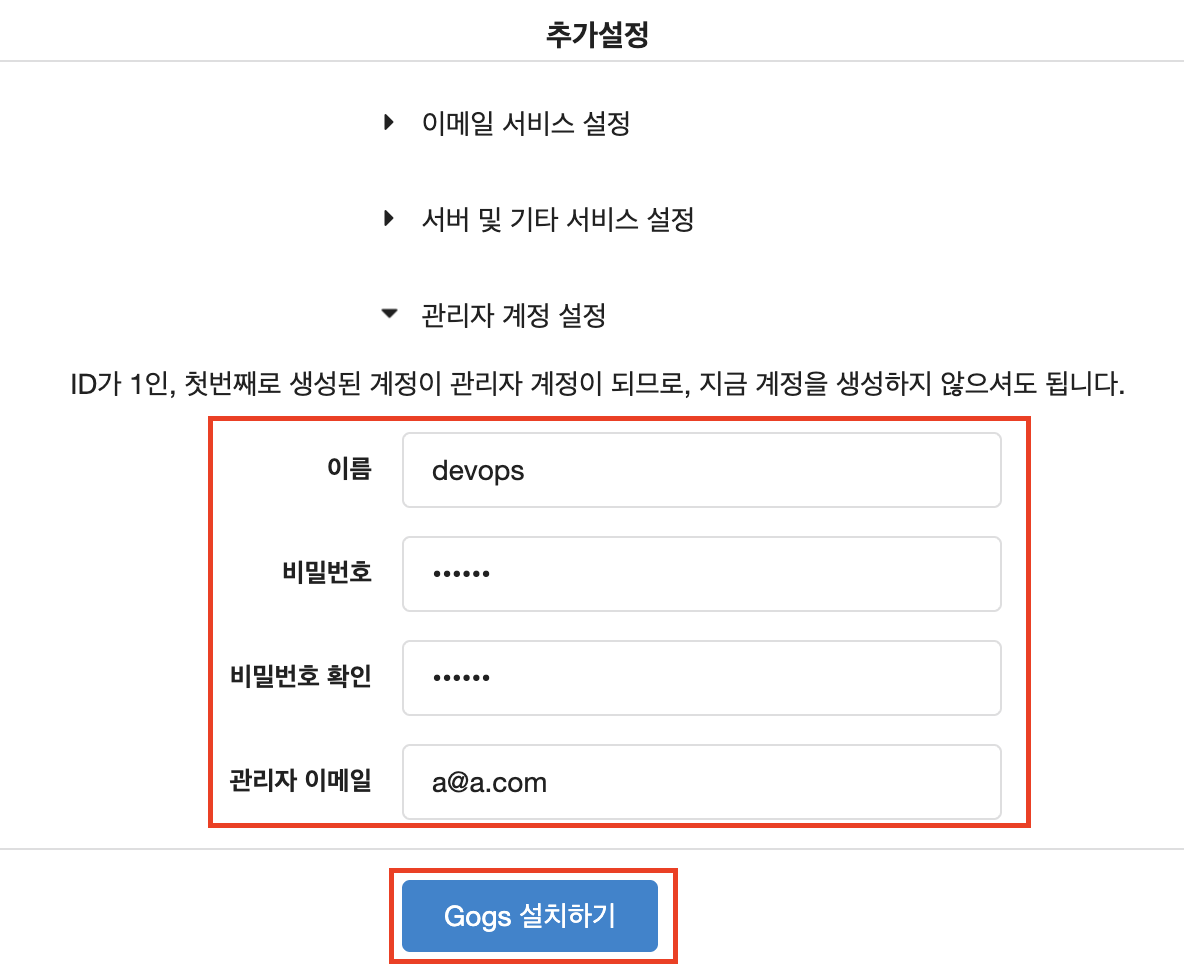
Gogs - Generate Token 생성(Private Repo 접속용 Key)
로그인 > Settings > Applications : Generate New Token > Token Name(devops) > Generate Token 클릭

Gogs - Private Repository 생성(Develop팀, Devops팀)
[Develop팀 Repo]
Name : dev-app
Visibility : (Check) This is repository is Private
.gitignore : Python
Readme : Default -> (Check) initialize this repository with selected files and template
>> Repo 주소 확인(http://172.30.1.40:3000/devops/dev-app.git)

[Devops팀 Repo]
Name : ops-deploy
Visibility : (Check) This is repository is Private
.gitignore : Python
Readme : Default -> (Check) initialize this repository with selected files and template
>> Repo 주소 확인(http://172.30.1.40:3000/devops/ops-deploy.git)

Gogs 저장소 설정(git push 작업)
# 현재 origin 확인
git config --list --show-origin

# gogs 토큰 설정
TOKEN={Gogs token 값 입력}

#git clone <각자 Gogs dev-app repo 주소>
git clone http://172.30.1.40:3000/devops/dev-app.git
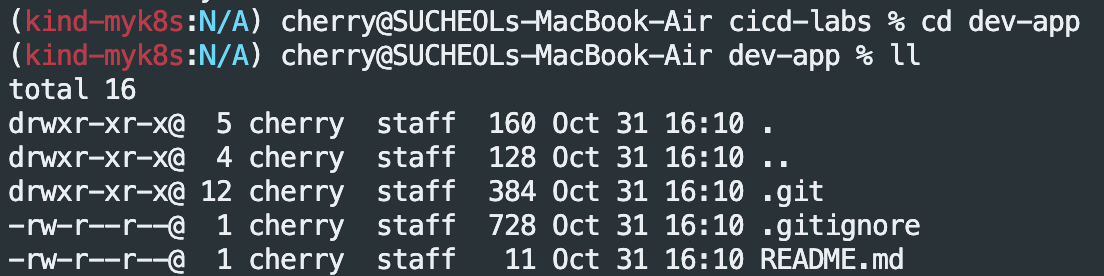
- git 환경 설정
cd dev-app

#
git config --local --list
git config --local user.name "devops"
git config --local user.email "a@a.com"
git config --local init.defaultBranch main
git config --local credential.helper store
git config --local --list
cat .git/config

#
git branch
git remote -v

- 소스 코드 파일 생성
# server.py 파일 작성
cat > server.py <<EOF
from http.server import ThreadingHTTPServer, BaseHTTPRequestHandler
from datetime import datetime
import socket

class RequestHandler(BaseHTTPRequestHandler):
    def do_GET(self):
        self.send_response(200)
        self.send_header('Content-type', 'text/plain')
        self.end_headers()

        now = datetime.now()
        hostname = socket.gethostname()
        response_string = now.strftime("The time is %-I:%M:%S %p, VERSION 0.0.1\n")
        response_string += f"Server hostname: {hostname}\n"
        self.wfile.write(bytes(response_string, "utf-8"))

def startServer():
    try:
        server = ThreadingHTTPServer(('', 80), RequestHandler)
        print("Listening on " + ":".join(map(str, server.server_address)))
        server.serve_forever()
    except KeyboardInterrupt:
        server.shutdown()

if __name__ == "__main__":
    startServer()
EOF

# Dockerfile 생성
cat > Dockerfile <<EOF
FROM python:3.12
ENV PYTHONUNBUFFERED 1
COPY . /app
WORKDIR /app
CMD python3 server.py
EOF

# VERSION 파일 생성
echo "0.0.1" > VERSION
# 저장소 vs 로컬 비교
git status
- Gogs - git push
git add .
git commit -m "Add dev-app"
git push -u origin main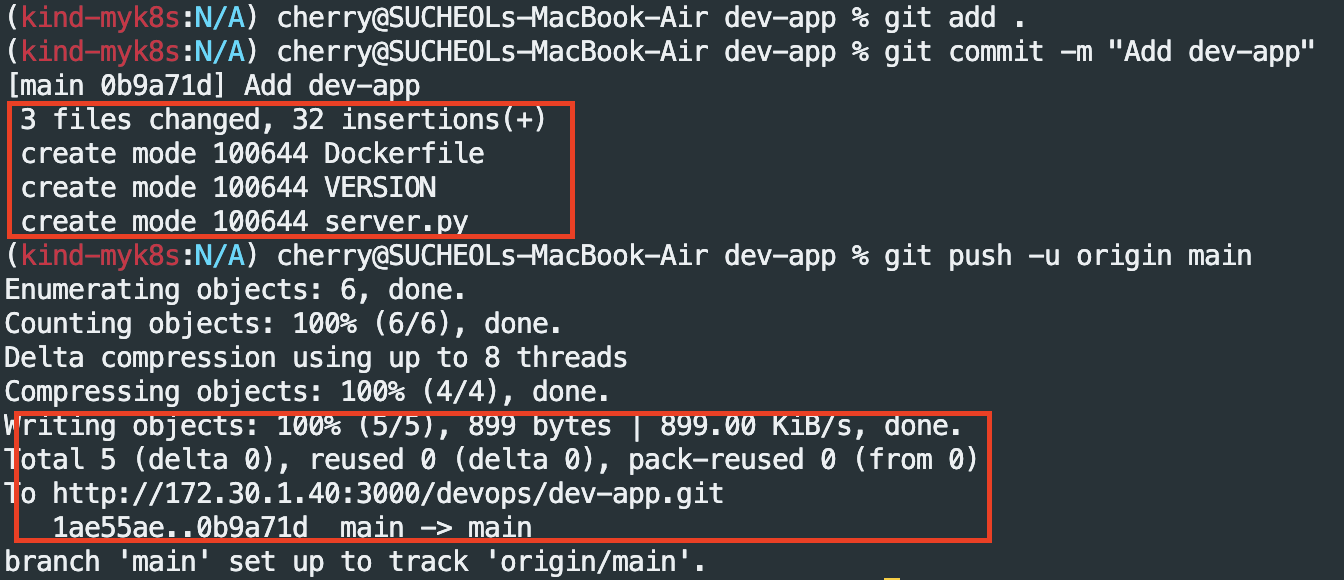

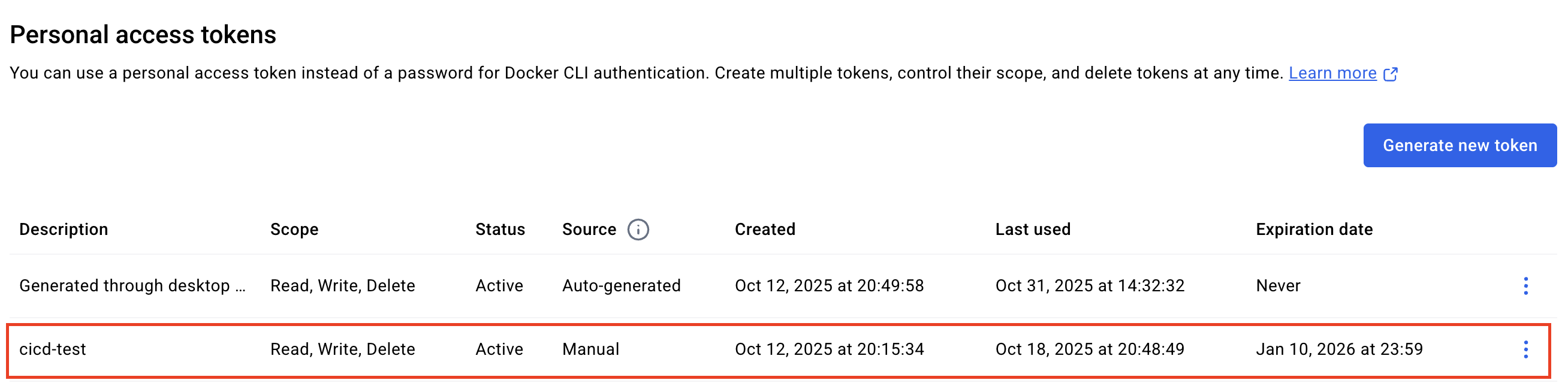
Docker hub - Token 발급(Token 값 별도 저장 필요)
Kind(Kubernetes in Docker) - https://kind.sigs.k8s.io/
Kind란?
kind는 도커 컨테이너를 '노드'로 사용하여 로컬 컴퓨터에 쿠버네티스 클러스터를 실행하는 도구
주요 특징 및 장점
- 빠른 속도와 가벼움: 별도의 가상 머신(VM)을 실행하는 대신 이미 실행 중인 도커 내부에 컨테이너로 클러스터를 구성하므로, 클러스터를 생성하고 삭제하는 속도가 매우 빠릅니다.
- 멀티 노드(Multi-node) 클러스터 지원: kind의 가장 강력한 장점 중 하나입니다. 컨트롤 플레인(Master) 1개와 여러 개의 워커 노드(Worker)를 가진 복잡한 클러스터 환경을 로컬에서 아주 쉽게 시뮬레이션할 수 있습니다.
- CI/CD 파이프라인에 최적화: 가볍고 스크립트로 제어하기 쉽기 때문에, GitHub Actions나 Jenkins 같은 CI/CD 파이프라인에서 테스트용 쿠버네티스 클러스터를 임시로 구축하고 테스트를 실행하는 데 매우 유용합니다.
- 표준 쿠버네티스 환경: K3s 같은 경량화 배포판이 아닌, CNCF(Cloud Native Computing Foundation) 인증을 받은 표준 쿠버네티스를 실행합니다. 덕분에 로컬 테스트 환경과 실제 운영 환경 간의 차이를 줄일 수 있습니다.
kind - 설치(기설치되어 있어 실습 생략)
# Install Kind
brew install kind
kind --version

# Install kubectl
brew install kubernetes-cli
kubectl version --client=true

## kubectl -> k 단축키 설정
echo "alias kubectl=kubecolor" >> ~/.zshrc

# Install Helm
brew install helm
helm version

# 툴 설치
brew install krew
brew install kube-ps1
brew install kubectx

# kubectl 출력 시 하이라이트 처리
brew install kubecolor
echo "alias kubectl=kubecolor" >> ~/.zshrc
echo "compdef kubecolor=kubectl" >> ~/.zshrc

# krew 플러그인 설치
kubectl krew install neat stren
kind - 배포
# 클러스터 배포 전 확인
docker ps

#
kind create cluster --name myk8s --image kindest/node:v1.32.8 --config - <<EOF
kind: Cluster
apiVersion: kind.x-k8s.io/v1alpha4
networking:
  apiServerAddress: "0.0.0.0"
nodes:
- role: control-plane
  extraPortMappings:
  - containerPort: 30000
    hostPort: 30000
  - containerPort: 30001
    hostPort: 30001
  - containerPort: 30002
    hostPort: 30002
  - containerPort: 30003
    hostPort: 30003
- role: worker
EOF

# kind 배포 확인
kind get nodes --name myk8s
kubens default
kind - kube-ops-view 배포(Pod 모니터링)
# kube-ops-view
helm repo add geek-cookbook https://geek-cookbook.github.io/charts/
helm install kube-ops-view geek-cookbook/kube-ops-view --version 1.2.2 --set service.main.type=NodePort,service.main.ports.http.nodePort=30001 --set env.TZ="Asia/Seoul" --namespace kube-system

# 설치 확인
kubectl get deploy,pod,svc,ep -n kube-system -l app.kubernetes.io/instance=kube-ops-view

# kube-ops-view 접속 URL 확인 (1.5배율)
open "http://127.0.0.1:30001/#scale=1.5"

# (참고) 아래 출력 값 확인 https://helm-decode.jojo.hk/
kubectl get secret -n kube-system sh.helm.release.v1.kube-ops-view.v1 -o yaml | kubectl neat
Jenkins CI + K8s(kind)
Jenkins - CI Pipeline
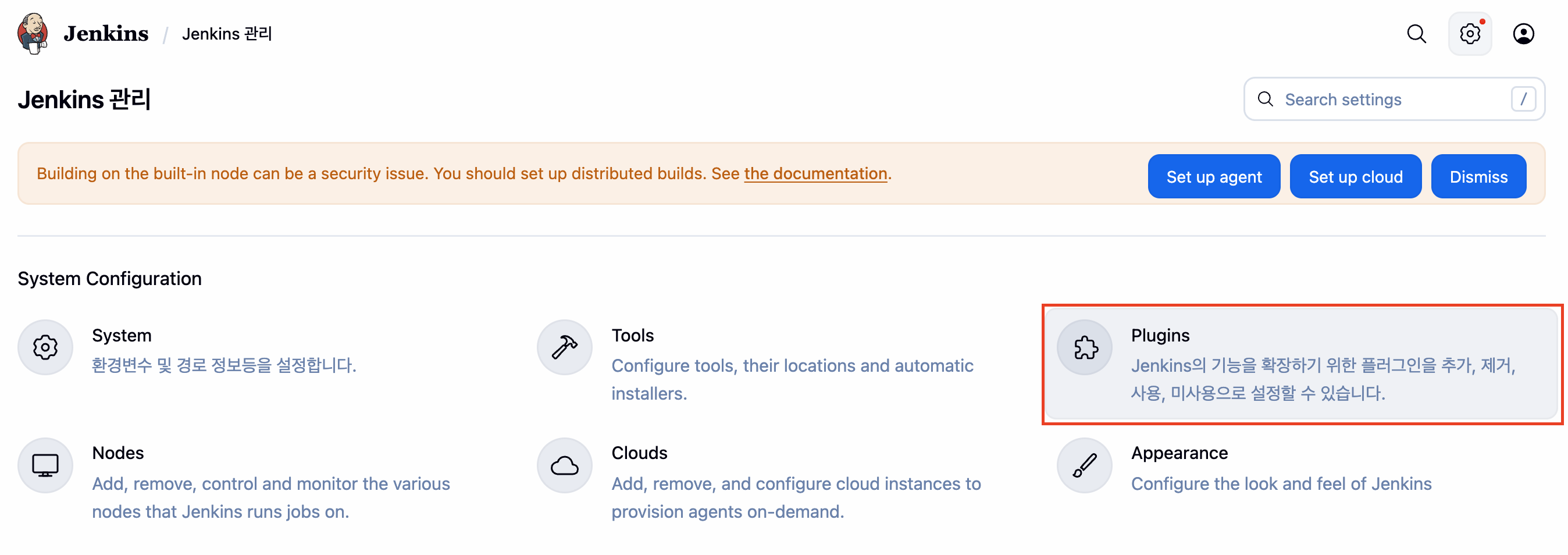
Plugin 설치 (Jenkins URL 접속 > Jenkins 'management' > Plugin )


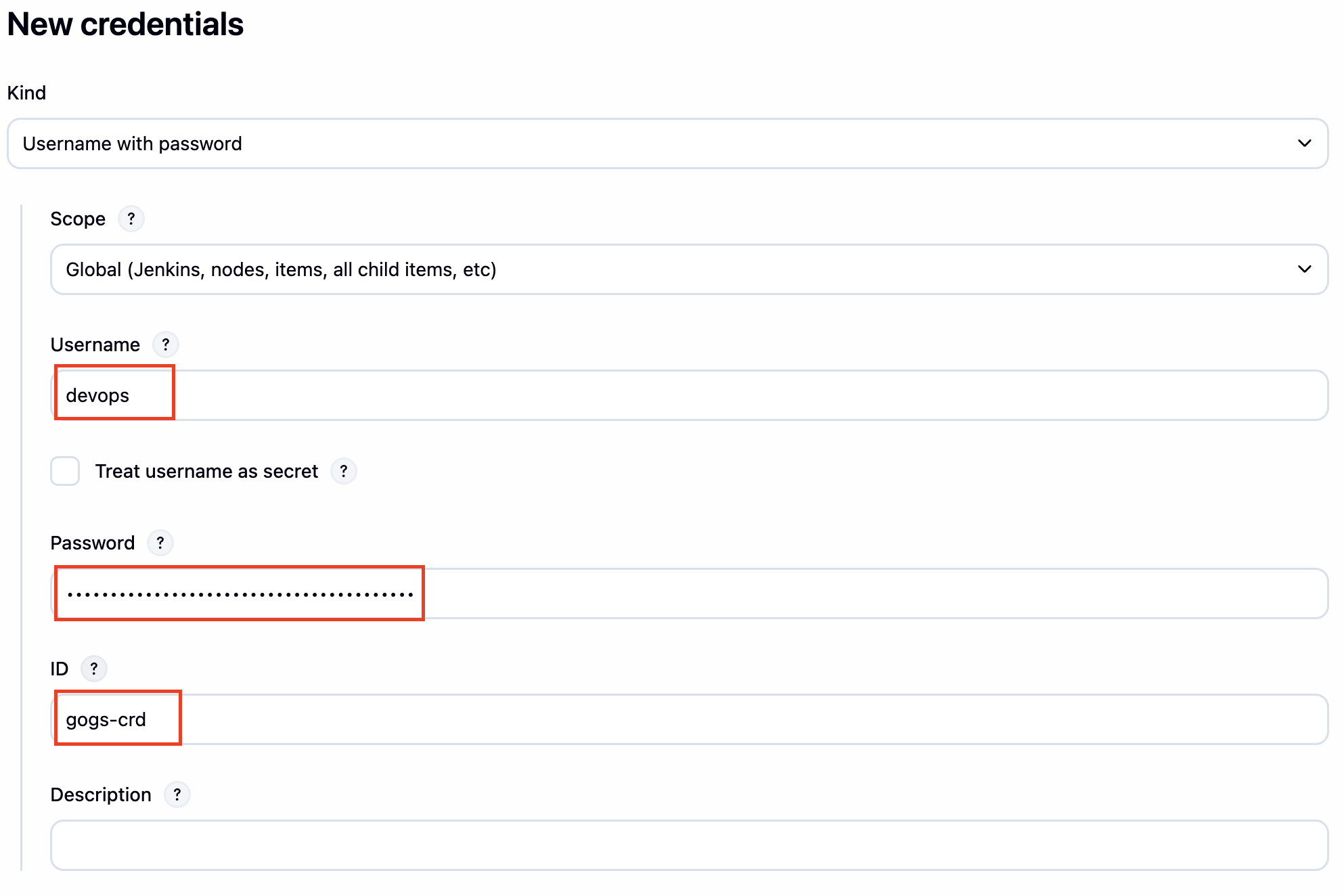
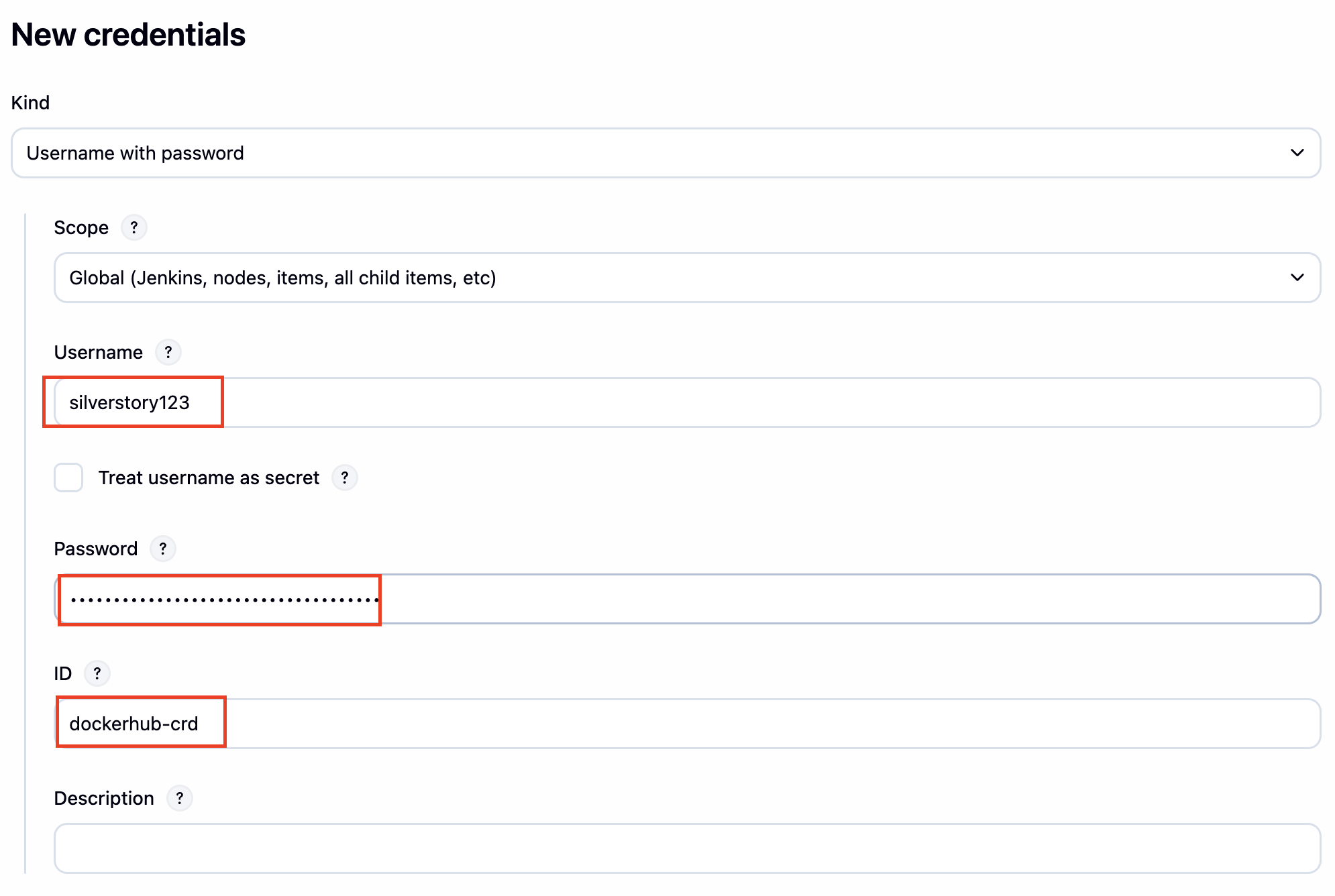
자격증명 설정

Pipeline Script 작성
pipeline {
    agent any
    environment {
        DOCKER_IMAGE = 'silverstory/dev-app' // Docker 이미지 이름
    }
    stages {
        stage('Checkout') {
            steps {
                 git branch: 'main',
                 url: 'http://172.30.1.40:3000/devops/dev-app.git',  // Git에서 코드 체크아웃
                 credentialsId: 'gogs-crd'  // Credentials ID
            }
        }
        stage('Read VERSION') {
            steps {
                script {
                    // VERSION 파일 읽기
                    def version = readFile('VERSION').trim()
                    echo "Version found: ${version}"
                    // 환경 변수 설정
                    env.DOCKER_TAG = version
                }
            }
        }
        stage('Docker Build and Push') {
            steps {
                script {
                    docker.withRegistry('https://index.docker.io/v1/', 'dockerhub-crd') {
                        // DOCKER_TAG 사용
                        def appImage = docker.build("${DOCKER_IMAGE}:${DOCKER_TAG}")
                        appImage.push()
                        appImage.push("latest")
                    }
                }
            }
        }
    }
    post {
        success {
            echo "Docker image ${DOCKER_IMAGE}:${DOCKER_TAG} has been built and pushed successfully!"
        }
        failure {
            echo "Pipeline failed. Please check the logs."
        }
    }
}

[ 이슈 사항 ]
상황 1. Dockerhub - Accounting Settings - Personal access Token 발급 시 Read&Write로 생성.

상황 2. Jenkins - Credentials 설정 또한 해당 Dockerhub에 Token 값을 정확히 명시하였고, gogs 또한 Credential 설정 완료

위와 같이 Token 발급과 더불어 Credential 설정을 완료하여도 docker push에서 지속적으로 insufficient_scope: authorization failed가 발생하였고, 터미널 창에서 지속적으로 docker logout + docker 재기동을하였지만 증상이 해결되지 않았다.
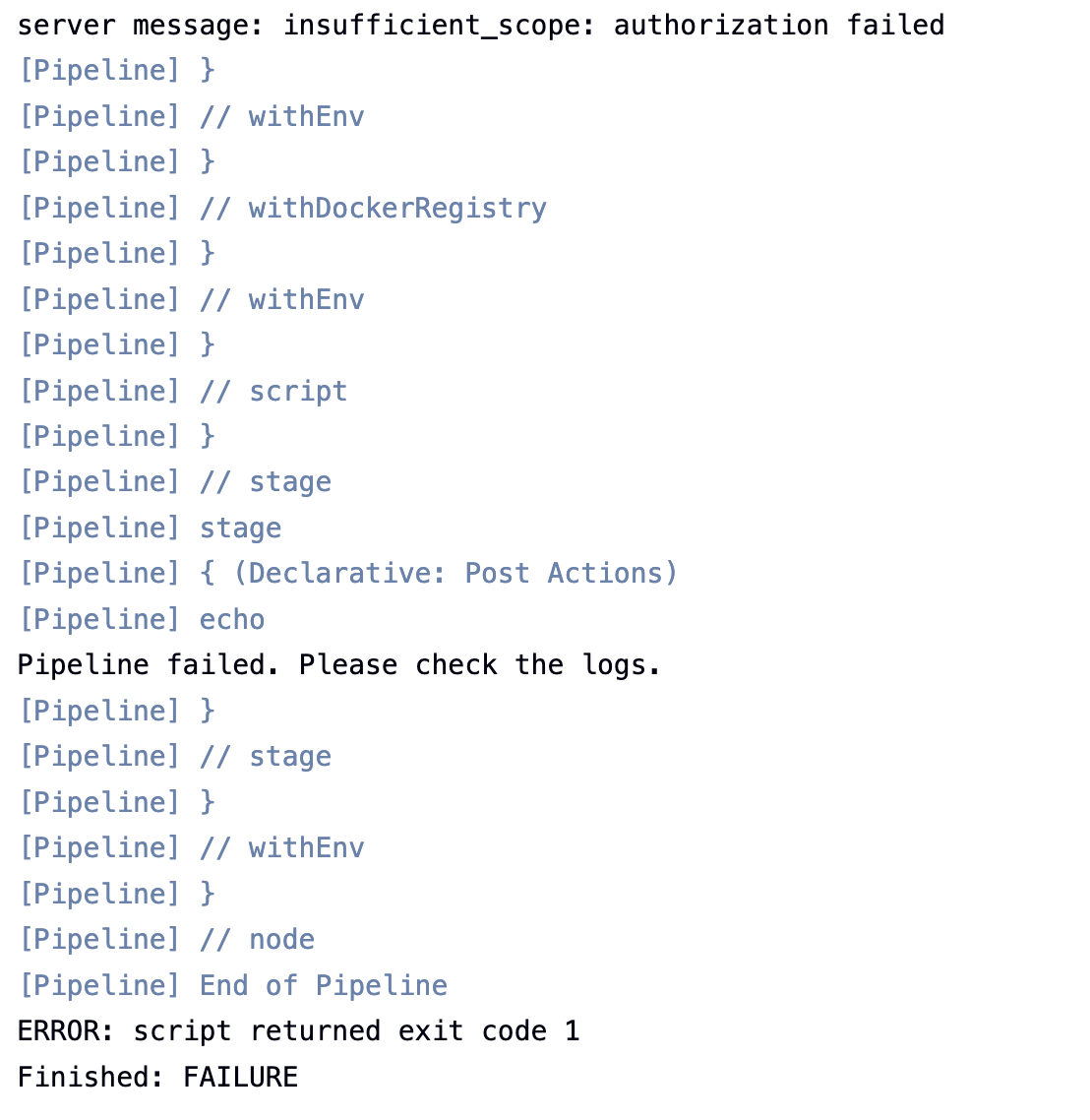
마지막으로, ~/.docker 경로를 전체 삭제 이후 docker compose가 정상 작동하지 않아 재설치하였는데 이후부터 정상적으로 jenkins 파이프라인이 수행되었다...
쿠버네티스에 배포
# 디플로이먼트 오브젝트 배포 : 리플리카(파드 2개), 컨테이너 이미지 >> 아래 도커 계정 부분만 변경해서 배포해보자
DHUSER=<도커 허브 계정명>
DHUSER=gasida

cat <<EOF | kubectl apply -f -
apiVersion: apps/v1
kind: Deployment
metadata:
  name: timeserver
spec:
  replicas: 2
  selector:
    matchLabels:
      pod: timeserver-pod
  template:
    metadata:
      labels:
        pod: timeserver-pod
    spec:
      containers:
      - name: timeserver-container
        image: docker.io/$DHUSER/dev-app:0.0.1
        livenessProbe:
          initialDelaySeconds: 30
          periodSeconds: 30
          httpGet:
            path: /healthz
            port: 80
            scheme: HTTP
          timeoutSeconds: 5
          failureThreshold: 3
          successThreshold: 1
EOF

# 모니터링
watch -d kubectl get deploy,rs,pod -o wide
에러 발생 확인

에러 원인 확인
# 배포 상태 확인 : kube-ops-view 웹 확인
kubectl get events -w --sort-by '.lastTimestamp'
kubectl get deploy,pod -o wide
kubectl describe pod

에러가 발생한 원인이 저장소가 존재하지 않거나 권한 에러로 인하여 발생하였다. 다만, 저장소는 앞서 봤던것처럼 silverstory/dev-app 컨테이너 저장소가 있었고 결국에는 kind에서 도커 컨테이너를 가져올 수 있는 권한이 필요하여 아래와 같이 secret 오브젝트를 선언 후 pod를 가져올 수 있어야 한다.
kind - docker 컨테이너 저장소 자격 증명 Secret 설정
kubectl get secret -A  # 생성 시 타입 지정

DHUSER=silverstory
DHPASS={dockerhub personal access token}
echo $DHUSER $DHPASS

kubectl create secret docker-registry dockerhub-secret \
  --docker-server=https://index.docker.io/v1/ \
  --docker-username=$DHUSER \
  --docker-password=$DHPASS

# 확인 : base64 인코딩 확인
kubectl get secret
kubectl get secrets -o yaml | kubectl neat
kubectl get secret dockerhub-secret -o jsonpath='{.data.\.dockerconfigjson}' | base64 -d | jq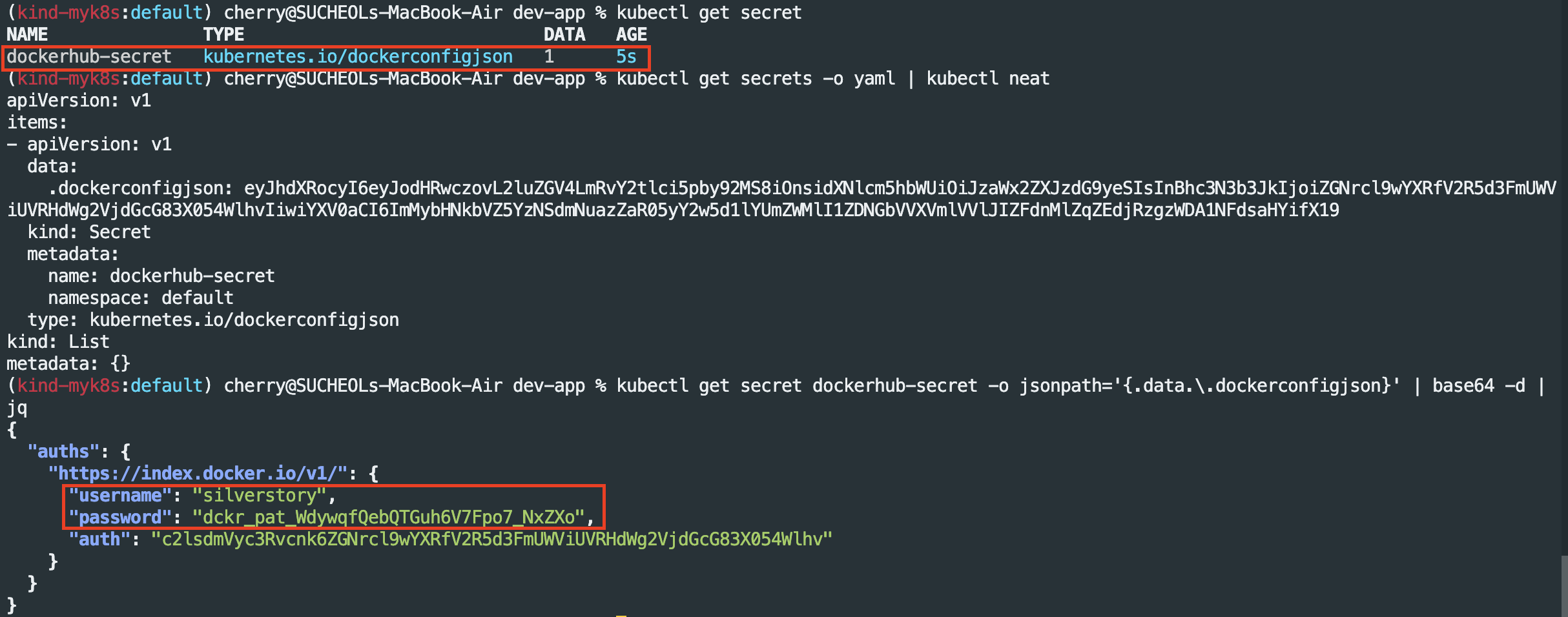
kind - deployment 배포(secret 선언)
# 디플로이먼트 오브젝트 업데이트 : 시크릿 적용 >> 아래 도커 계정 부분만 변경해서 배포해보자
cat <<EOF | kubectl apply -f -
apiVersion: apps/v1
kind: Deployment
metadata:
  name: timeserver
spec:
  replicas: 2
  selector:
    matchLabels:
      pod: timeserver-pod
  template:
    metadata:
      labels:
        pod: timeserver-pod
    spec:
      containers:
      - name: timeserver-container
        image: docker.io/$DHUSER/dev-app:0.0.1
        livenessProbe:
          initialDelaySeconds: 30
          periodSeconds: 30
          httpGet:
            path: /healthz
            port: 80
            scheme: HTTP
          timeoutSeconds: 5
          failureThreshold: 3
          successThreshold: 1
      imagePullSecrets:
      - name: dockerhub-secret
EOF
watch -d kubectl get deploy,rs,pod -o wide

# 확인
kubectl get events -w --sort-by '.lastTimestamp'
kubectl get deploy,pod


kind - service 배포
# 서비스 생성
cat <<EOF | kubectl apply -f -
apiVersion: v1
kind: Service
metadata:
  name: timeserver
spec:
  selector:
    pod: timeserver-pod
  ports:
  - port: 80
    targetPort: 80
    protocol: TCP
    nodePort: 30000
  type: NodePort
EOF

kubectl get service,ep timeserver -owide

curl http://127.0.0.1:30000
curl http://127.0.0.1:30000/healthz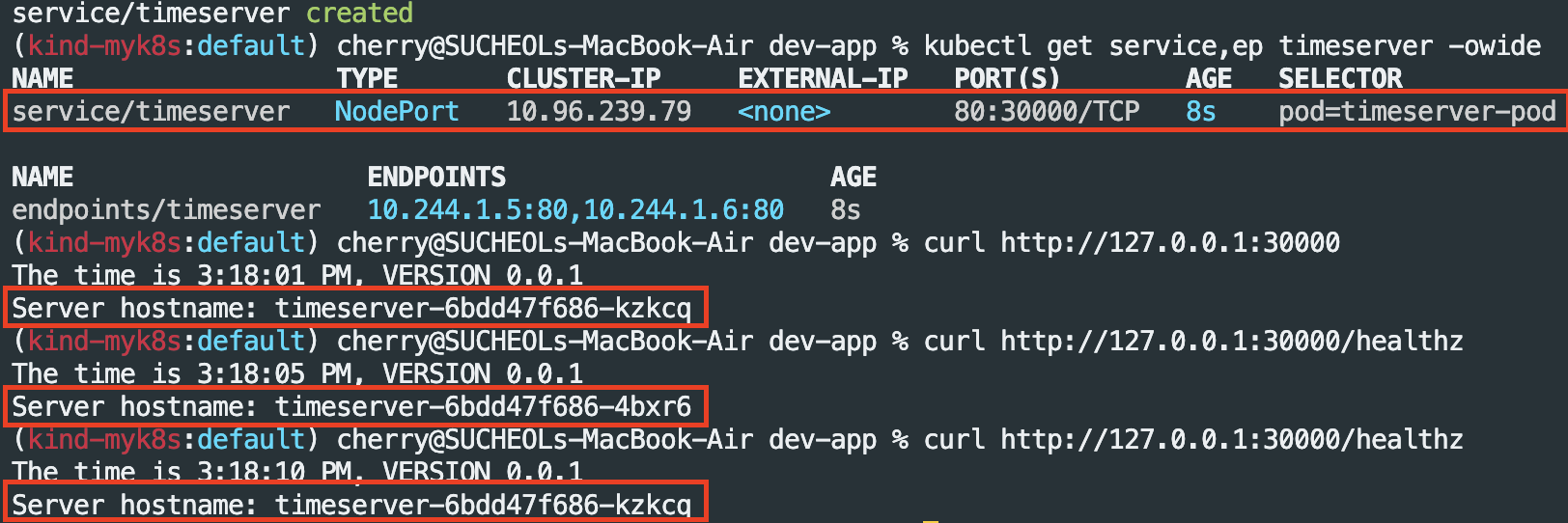
부하 분산 테스트
# 부하 분산 테스트 (2개 확인)
while true; do curl -s --connect-timeout 1 http://127.0.0.1:30000 ; sleep 1 ; done
for i in {1..100};  do curl -s http://127.0.0.1:30000 | grep name; done | sort | uniq -c | sort -nr

# 파드 복제본 증가(2 > 4) 및 확인
kubectl scale deployment timeserver --replicas 4
kubectl get service,ep timeserver -owide

# 부하 분산 테스트 (4개 확인)
while true; do curl -s --connect-timeout 1 http://127.0.0.1:30000 ; sleep 1 ; done
for i in {1..100};  do curl -s http://127.0.0.1:30000 | grep name; done | sort | uniq -c | sort -nr


애플리케이션 업데이트
#VERSION 변경 : 0.0.1 > 0.0.2
#server.py 변경 : 0.0.1 > 0.0.2
git add . && git commit -m "VERSION $(cat VERSION) Changed" && git push -u origin main


- Jenkins Build
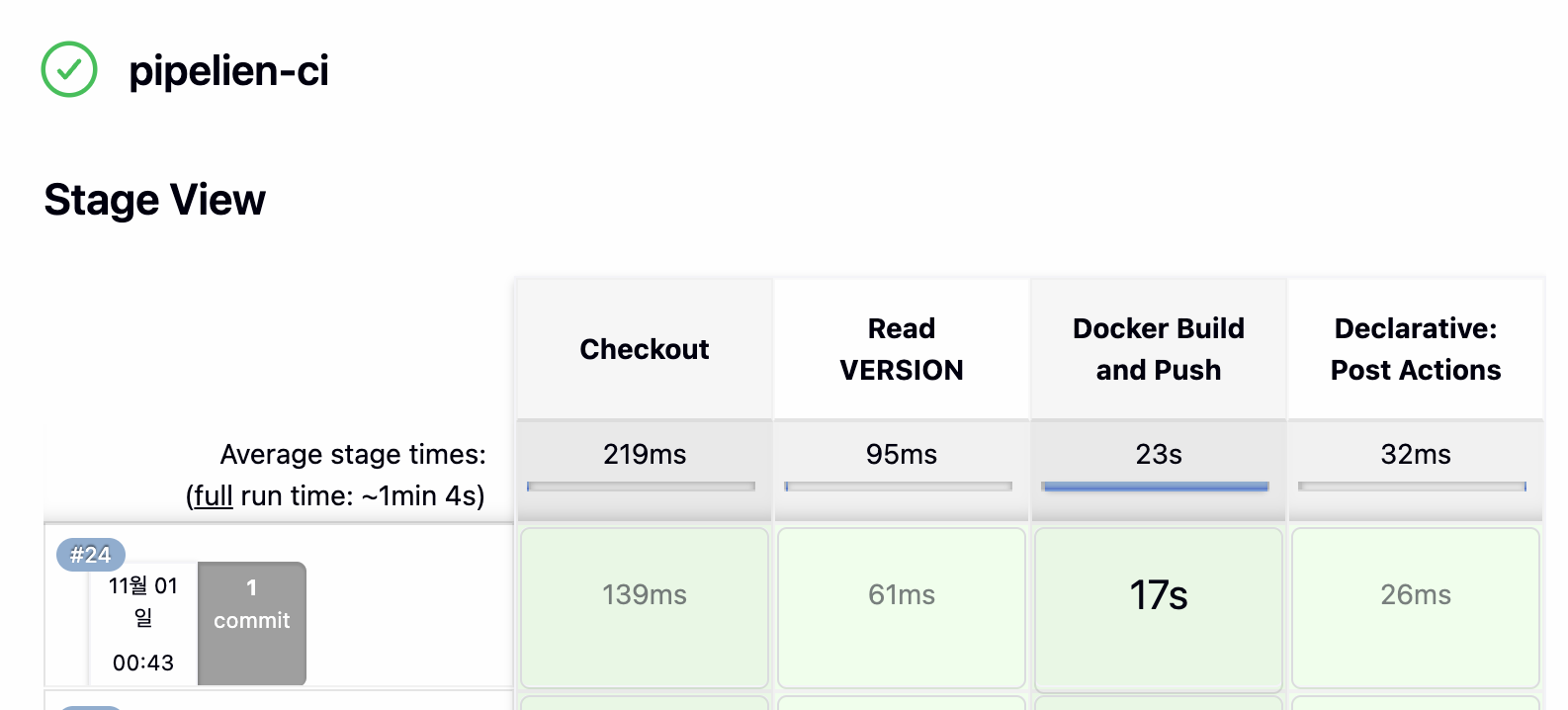

Kind - Deployment(Rolling Update)
# 반복 접속 해두기 : 부하분산 확인
while true; do curl -s --connect-timeout 1 http://127.0.0.1:30000 ; sleep 1 ; done
for i in {1..100};  do curl -s http://127.0.0.1:30000 | grep name; done | sort | uniq -c | sort -nr

# Rolling update
kubectl set image deployment timeserver timeserver-container=$DHUSER/dev-app:0.0.2 && watch -d "kubectl get deploy,ep timeserver -owide; echo; kubectl get rs,pod"

# 롤링 업데이트 확인
watch -d kubectl get deploy,rs,pod,svc,ep -owide
kubectl get deploy,rs,pod,svc,ep -owide

# kubectl get deploy $DEPLOYMENT_NAME
kubectl get deploy timeserver
kubectl get pods -l pod=timeserver-pod

#
curl http://127.0.0.1:30000



Gogs - Webhoog 설정
Gogs 컨테이너 내부 파일 수정
docker compose exec gogs bash
vi /data/gogs/conf/app.ini

# 아래 내용 추가
LOCAL_NETWORK_ALLOWLIST = { 각자 IP }

# 재기동
docker compose restart gogs # 재기동 안할 경우 Webhook 생성 시 에러 발생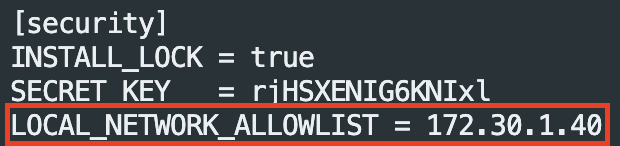

설정 위치 : Gogs > 로그인 > dev-app > Settings(설정) > Webhooks
[ 설정 방법 ]
페이로드 URL : http://{각자 IP}/gogs-webhook/?job=SCM-Pipeline/
컨텐츠 타입 : application/json
Secret : qwe123
Webhook 실행 : Just Push Event(단순한 푸시 이벤트)
Active : check
Jenkins - Item 생성(SCM-Pipeline)
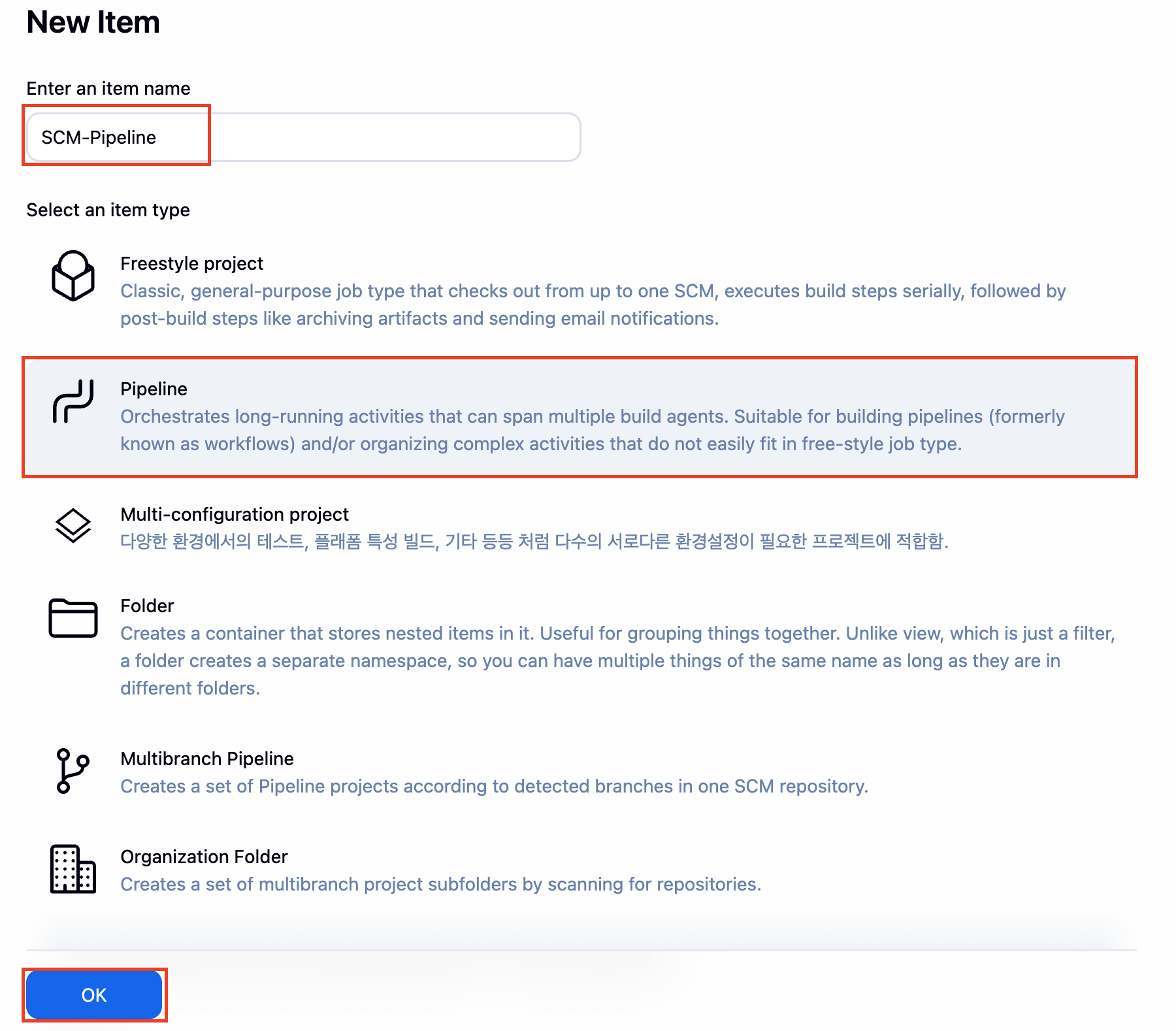
# 1. Github Project - Check
# Gogs : dev-app Repo URL 기재
# http://172.30.1.40:3000/devops/dev-app

# 2. Gogs Webhook - Check
# Secret : Gogs Webhook에서 설정한 Secret 기재(qwe123)
# 3. Triggers - Build when a change is pushed to Gogs - Check
# Pipeline script from SCM
   - SCM : Git
      - Repo URL(`http://***<mac IP>***:3000/***<Gogs 계정명>***/dev-app`)
      - Credentials(**devops/*****)
      - Branch(***/main**)
   - Script Path : **Jenkinsfile**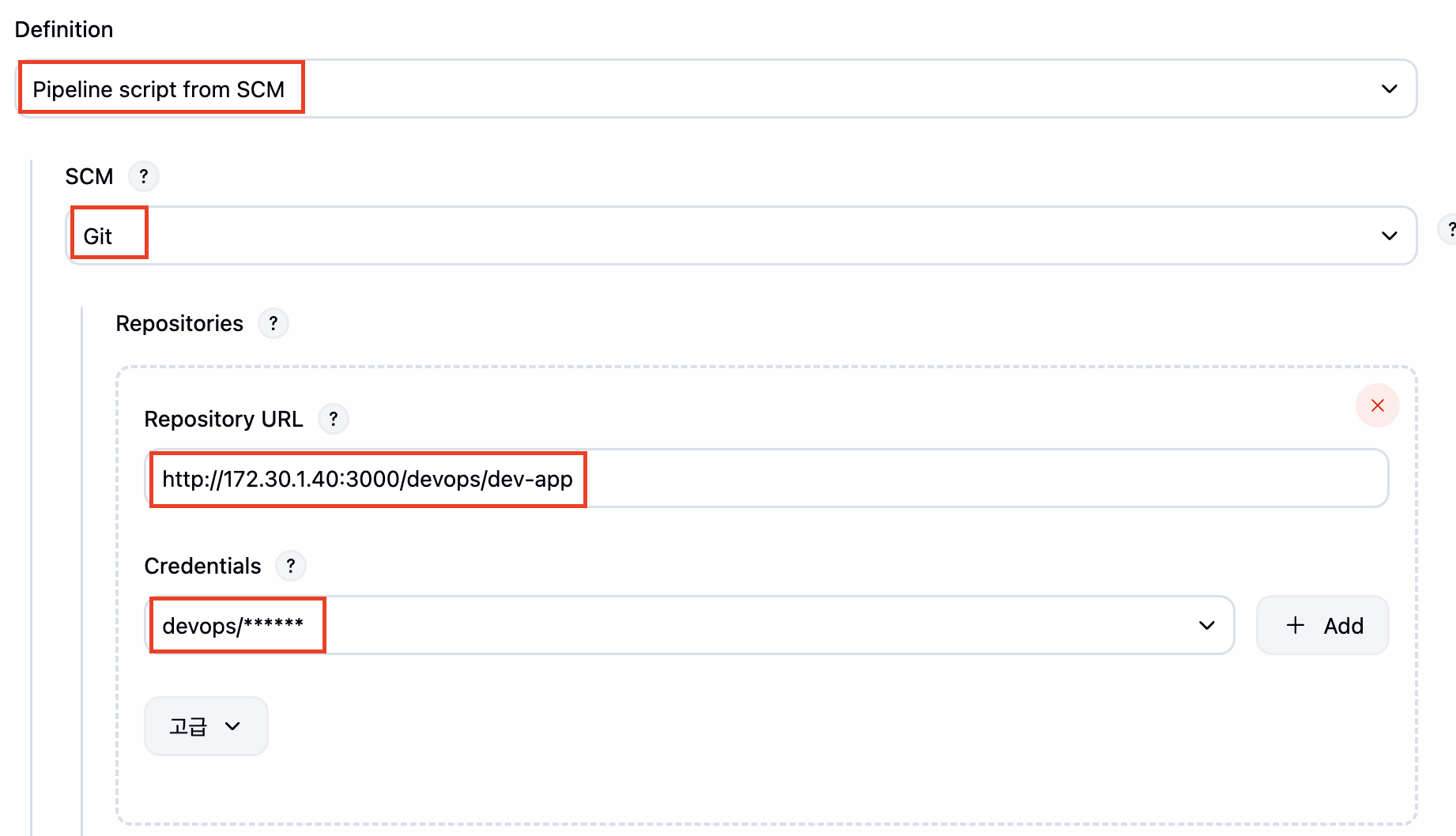

JenkinsFile 작성
# Jenkinsfile 빈 파일 작성
tree # 구조 확인

touch Jenkinsfile

# VERSION, server.py 수정 ( 0.0.2 > 0.0.3 )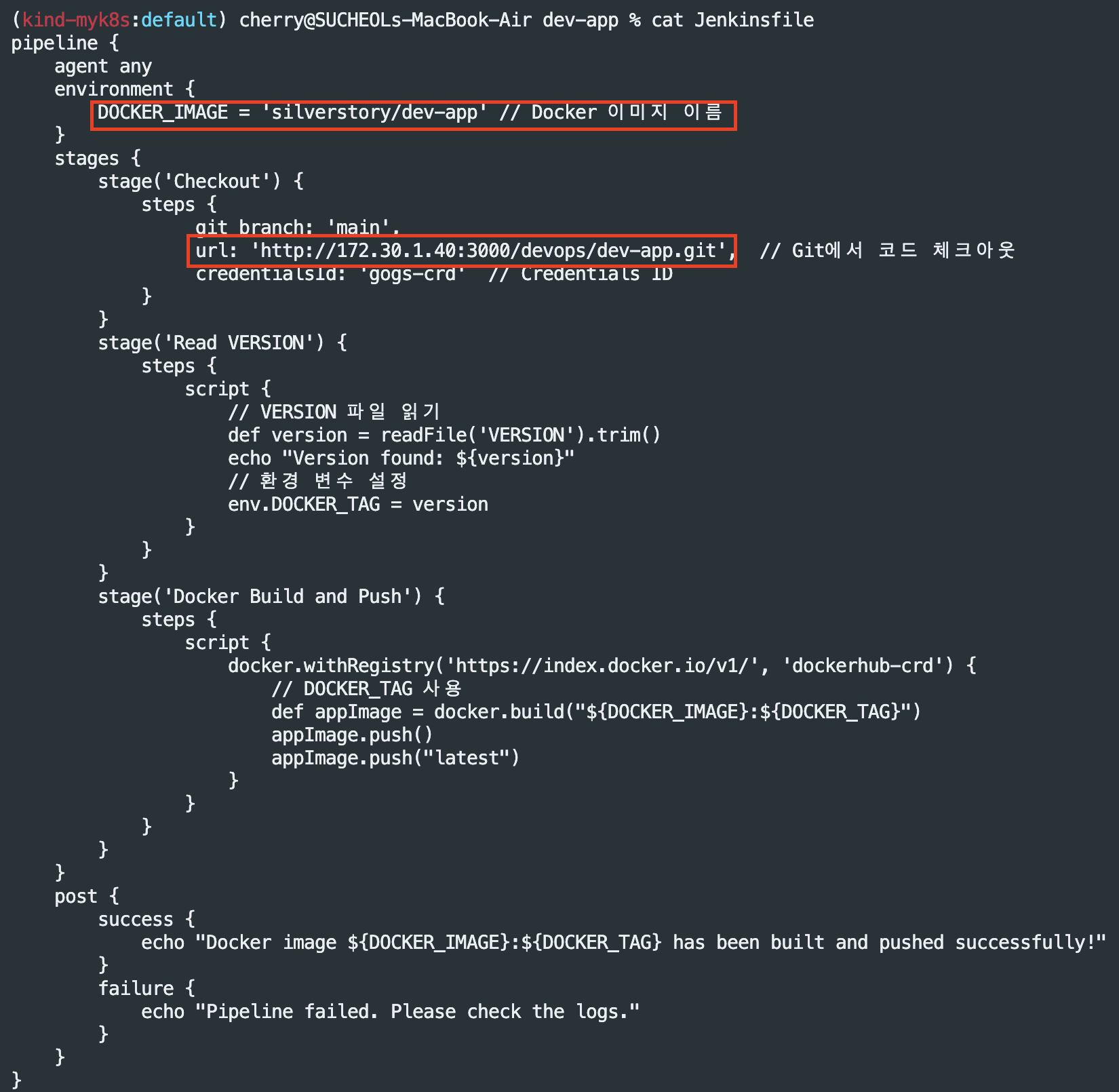
Gogs - 업데이트
git add . && git commit -m "VERSION $(cat VERSION) Changed" && git push -u origin main
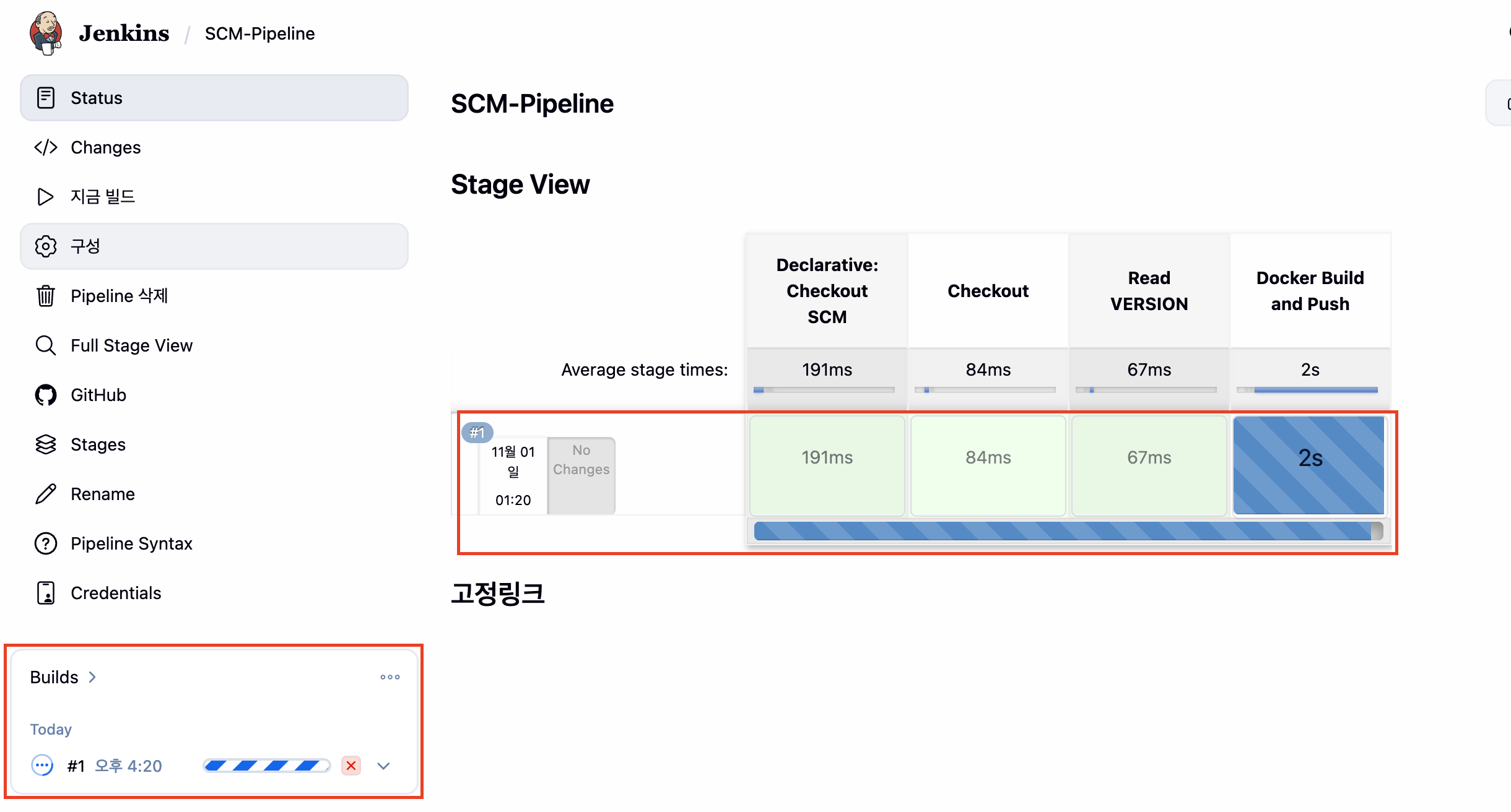
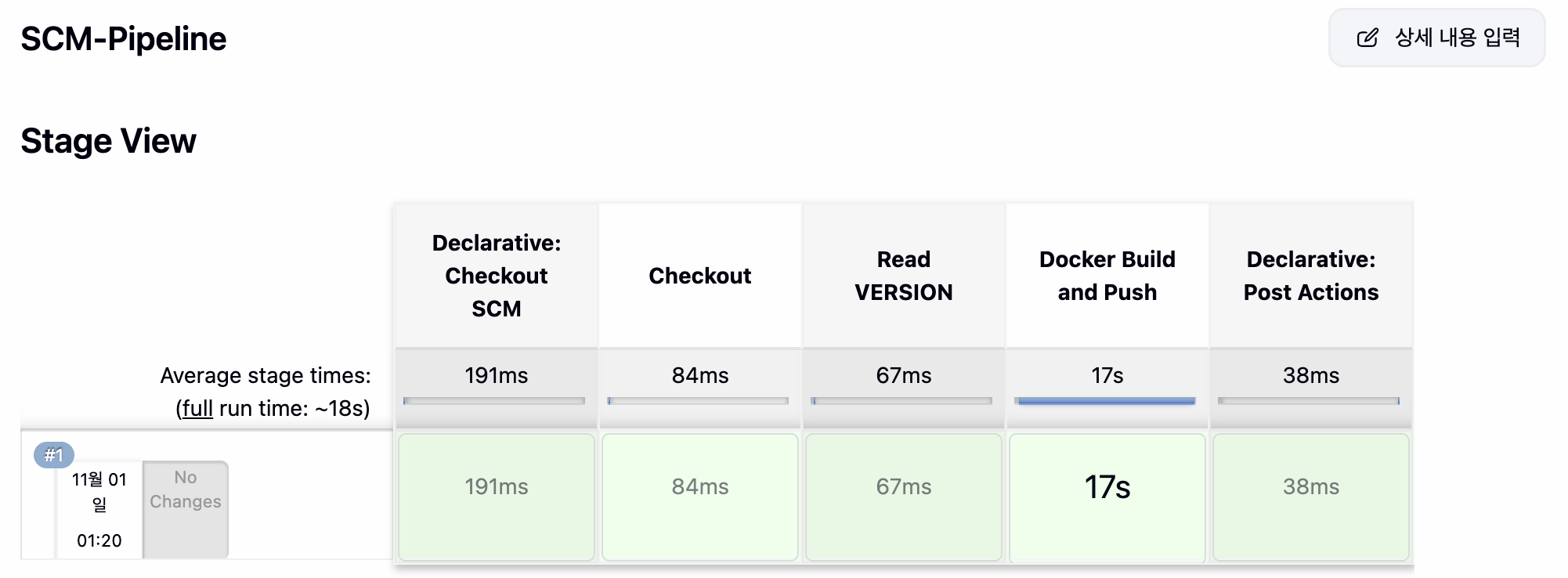
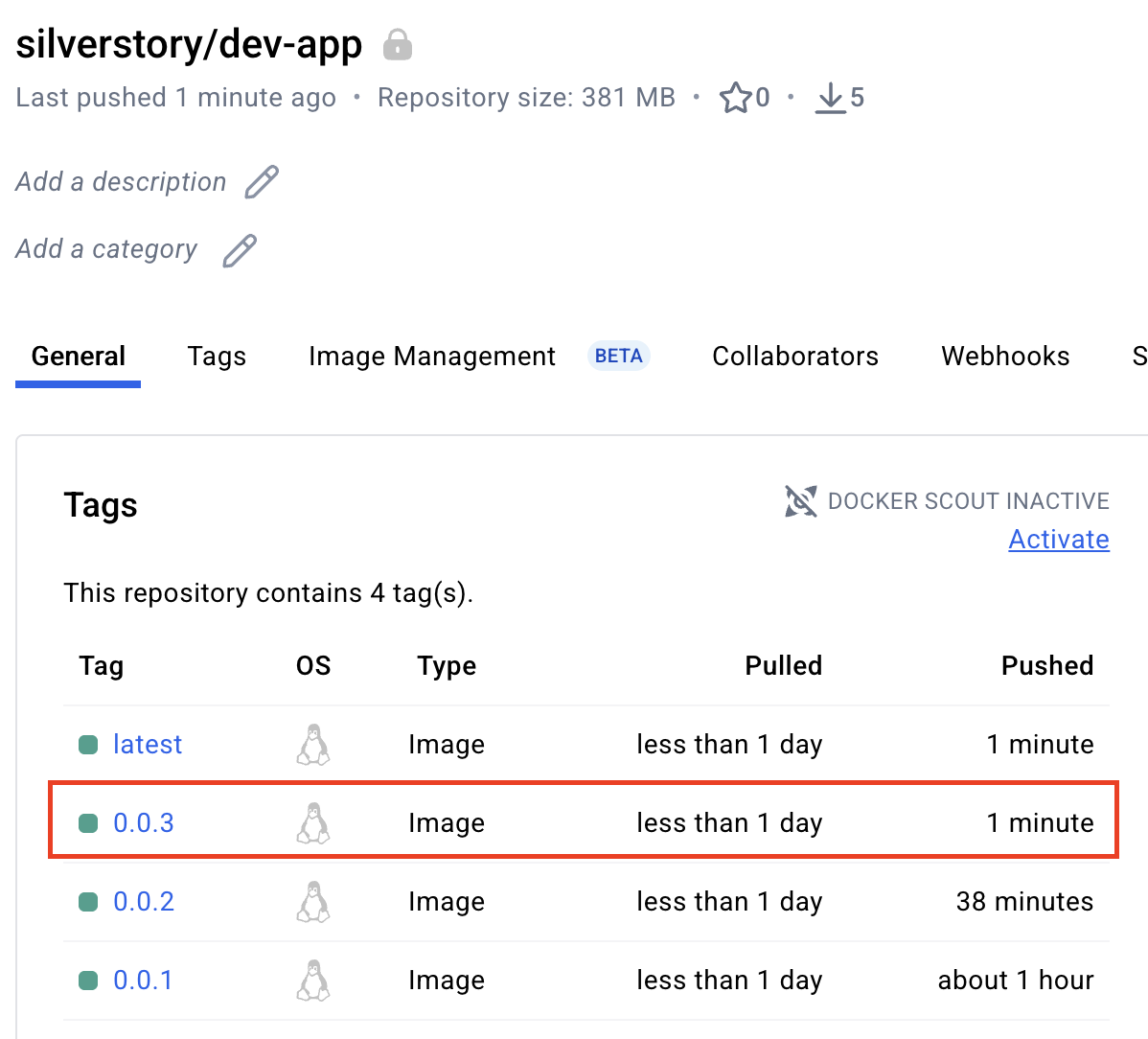
Jenkins - Automatically Build 확인

Kind - Deployment Rolling Update
# 배포(업데이트)
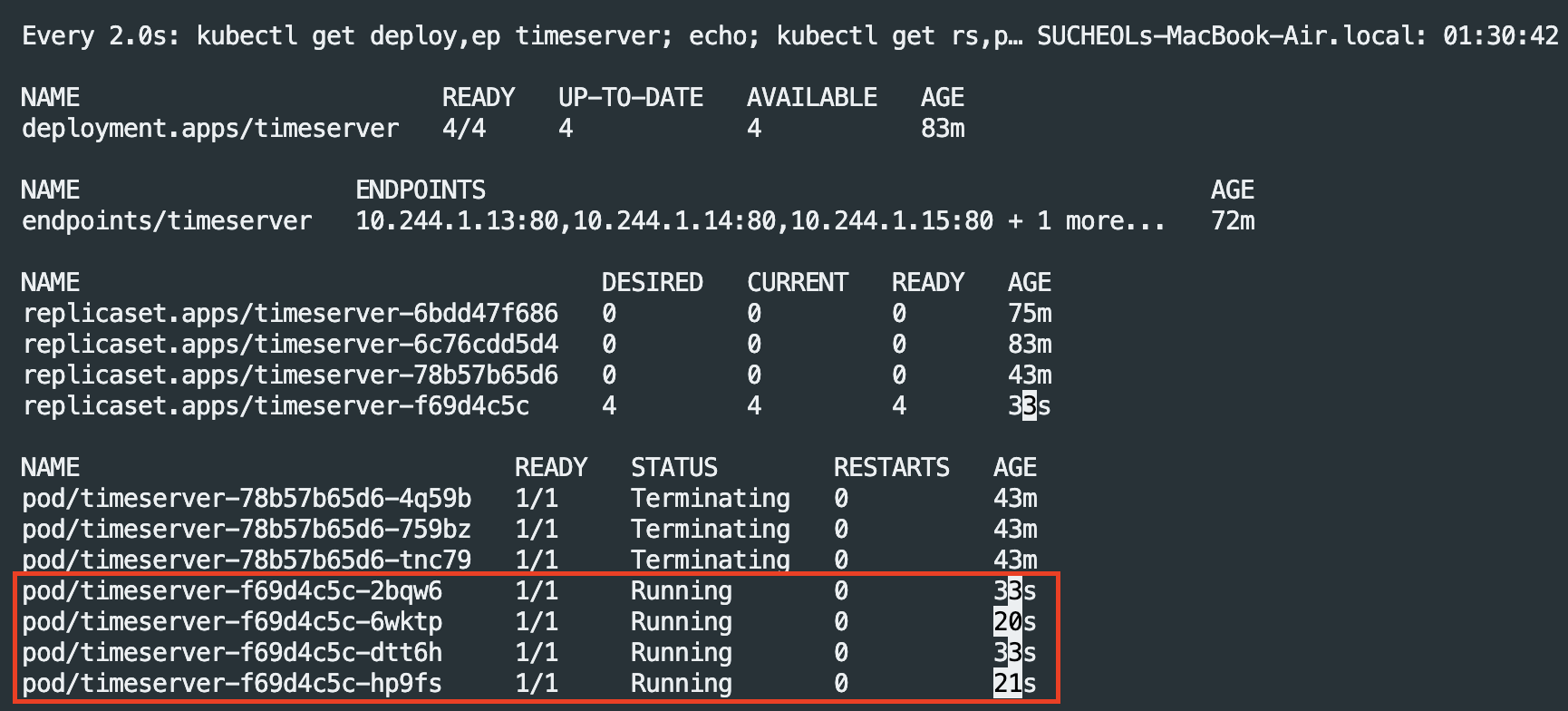
kubectl set image deployment timeserver timeserver-container=$DHUSER/dev-app:0.0.3 && while true; do curl -s --connect-timeout 1 http://127.0.0.1:30000 ; sleep 1 ; done

# 확인
watch -d "kubectl get deploy,ep timeserver; echo; kubectl get rs,pod"
Jenkins CD + K8s(kind)
Jenkins 내부 Tool 설치(kubectl[v1.32), helm)
# Install kubectl, helm
docker compose exec --privileged -u root jenkins bash
--------------------------------------------
# kubectl download
curl -LO "https://dl.k8s.io/release/v1.32.8/bin/linux/arm64/kubectl"  # macOS

install -o root -g root -m 0755 kubectl /usr/local/bin/kubectl
kubectl version --client=true

#
curl https://raw.githubusercontent.com/helm/helm/main/scripts/get-helm-3 | bash
helm version

exit
--------------------------------------------
# 원격으로 실행
docker compose exec jenkins kubectl version --client=true
docker compose exec jenkins helm version
Jenkins - 자격증명 설정
# Container IP 확인
docker inspect myk8s myk8s-control-plane | grep IPAddress

# Jenkins > control plane 통신 확인
docker exec -it jenkins curl https://172.19.0.3:6443/version -k
위 실습 과정에서 무엇인가를 놓쳤는지 정상적으로 통신이 불가능하여 아래와 같이 docker network를 양방향으로 설정해주었다.
# kind, jenkins 도커 컨테이너 네트워크 설정
docker network connect kind jenkins_server
docker network connect cicd-labs_cicd-network myk8s-control-plane
# kube config 파일 복사 및 수정
cp ~/.kube/config .kube-config

cat .kube-config

# 0.0.0.0 > 172.19.0.2로 수정
Jenkins - 자격증명 업로드
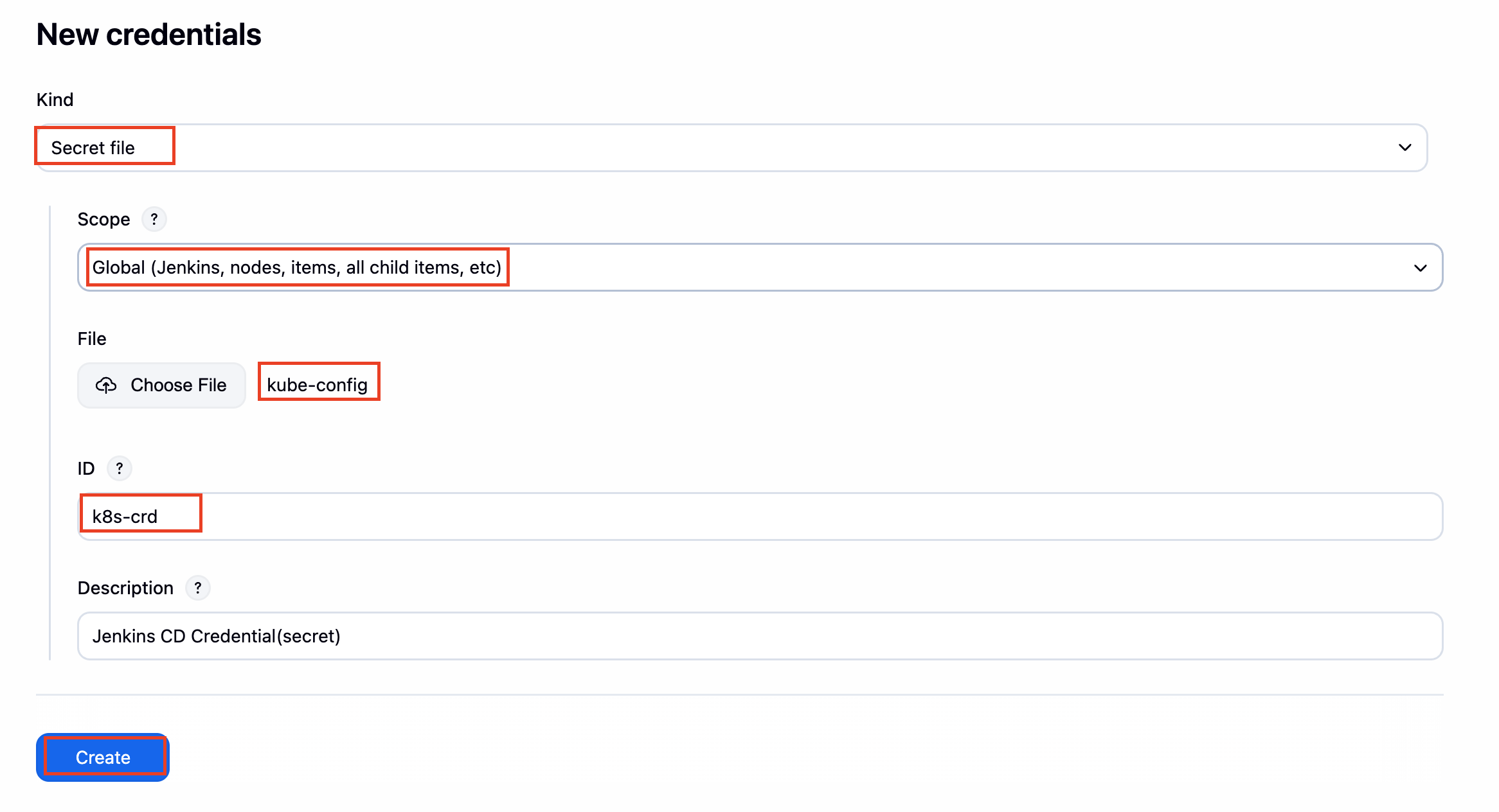

Jenkins - Pipeline 생성
pipeline {
    agent any
    environment {
        KUBECONFIG = credentials('k8s-crd')
    }
    stages {
        stage('List Pods') {
            steps {
                sh '''
                # Fetch and display Pods
                kubectl get pods -A --kubeconfig "$KUBECONFIG"
                '''
            }
        }
    }
}

Terminal - 기존 실습 환경 삭제
kubectl delete deploy,svc timeserver
Terminal - CD 실습을 위한 deploy,svc 생성(Blue-Green)
#
cd dev-app

#
mkdir deploy

#
cat > deploy/echo-server-blue.yaml <<EOF
apiVersion: apps/v1
kind: Deployment
metadata:
  name: echo-server-blue
spec:
  replicas: 2
  selector:
    matchLabels:
      app: echo-server
      version: blue
  template:
    metadata:
      labels:
        app: echo-server
        version: blue
    spec:
      containers:
      - name: echo-server
        image: hashicorp/http-echo
        args:
        - "-text=Hello from Blue"
        ports:
        - containerPort: 5678
EOF

cat > deploy/echo-server-service.yaml <<EOF
apiVersion: v1
kind: Service
metadata:
  name: echo-server-service
spec:
  selector:
    app: echo-server
    version: blue
  ports:
  - protocol: TCP
    port: 80
    targetPort: 5678
    nodePort: 30000
  type: NodePort
EOF

cat > deploy/echo-server-green.yaml <<EOF
apiVersion: apps/v1
kind: Deployment
metadata:
  name: echo-server-green
spec:
  replicas: 2
  selector:
    matchLabels:
      app: echo-server
      version: green
  template:
    metadata:
      labels:
        app: echo-server
        version: green
    spec:
      containers:
      - name: echo-server
        image: hashicorp/http-echo
        args:
        - "-text=Hello from Green"
        ports:
        - containerPort: 5678
EOF
(설명) deploy 디렉터리 안에 아래 yaml 파일들을 정의한다.
- echo-server-blue.yaml : Blue-Green 배포를 위해 Deploymen를 정의하고 Label에 {version:blue}을 정의한다.
- echo-server-service.yaml : Service를 통해 {version:blue}과 매핑하기 위해 정의
- echo-server-green.yaml : Blue-Green 배포를 위해 Deploymen를 정의하고 Label에 {version:green}을 정의한다.
해당 실습은 처음에는 version:blue로 서비스를 Launching했다가 업데이트가 필요하면 version:green으로 변경하여 무중단 배포가 가능하게 해준다.
#devops/dev-app 트리 구조 확인(gogs에서도 동일 구조)
tree

# Push(자동 이벤트 발생 확인)
git add . && git commit -m "Add echo server yaml" && git push -u origin main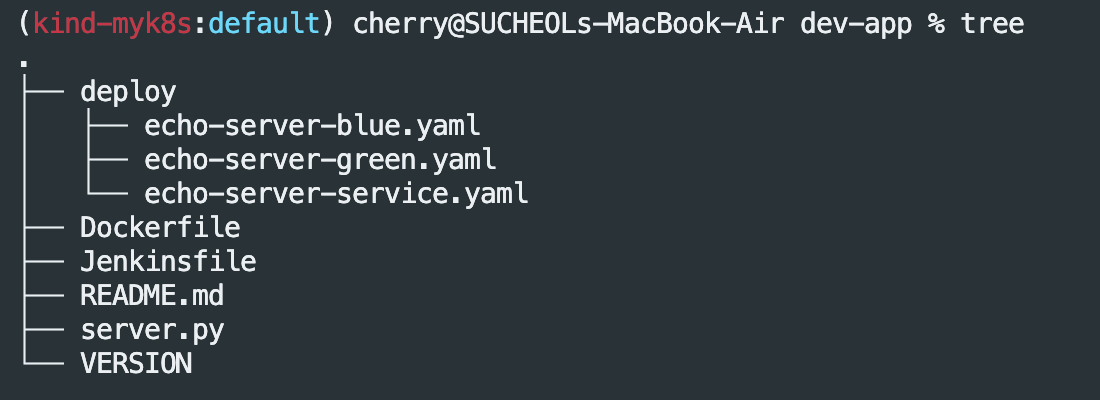


Terminal - Blue-Green 배포
#
cd deploy
kubectl delete deploy,svc --all
kubectl apply -f .

#
kubectl get deploy,svc,ep -owide
curl -s http://127.0.0.1:30000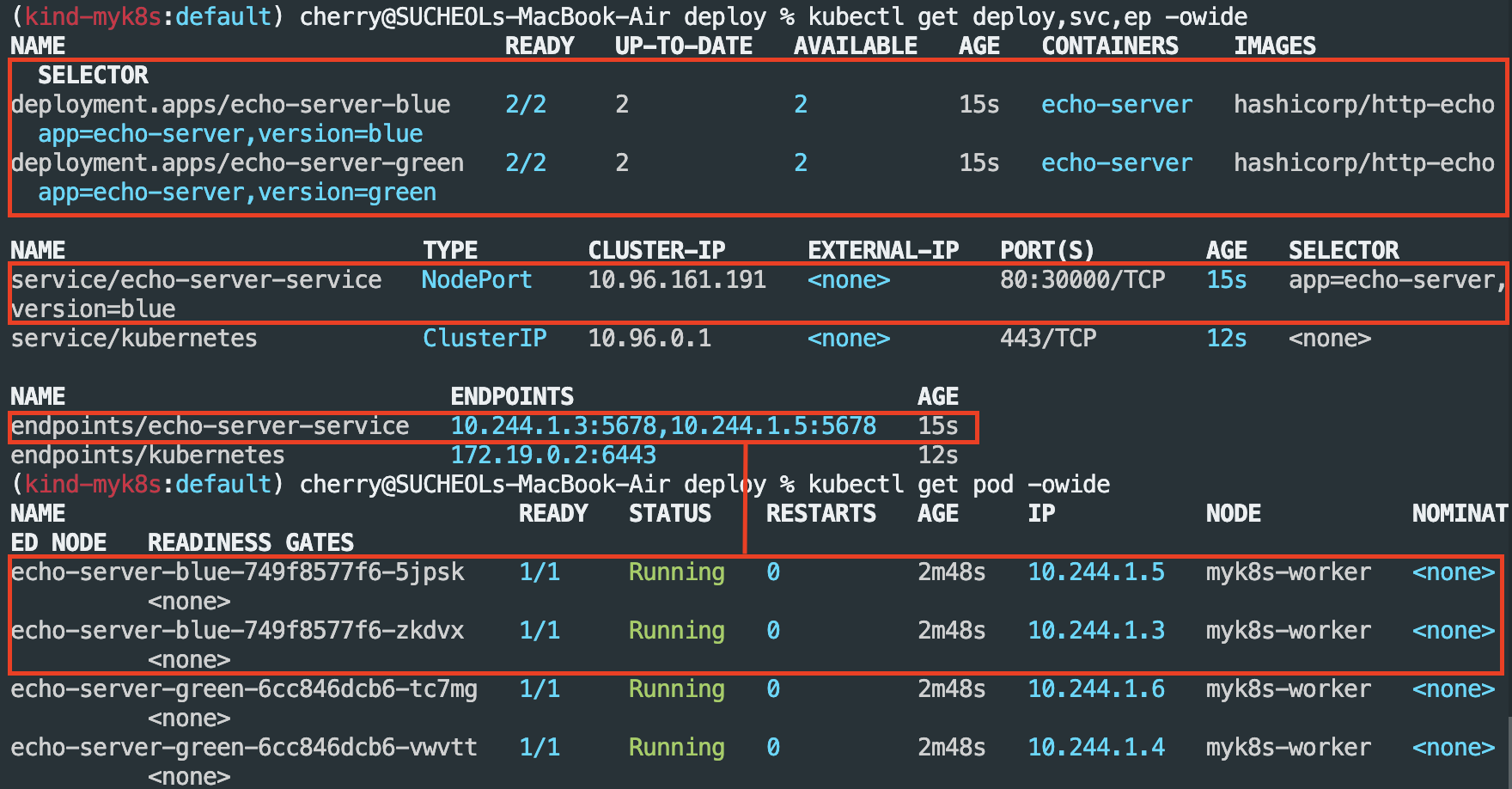

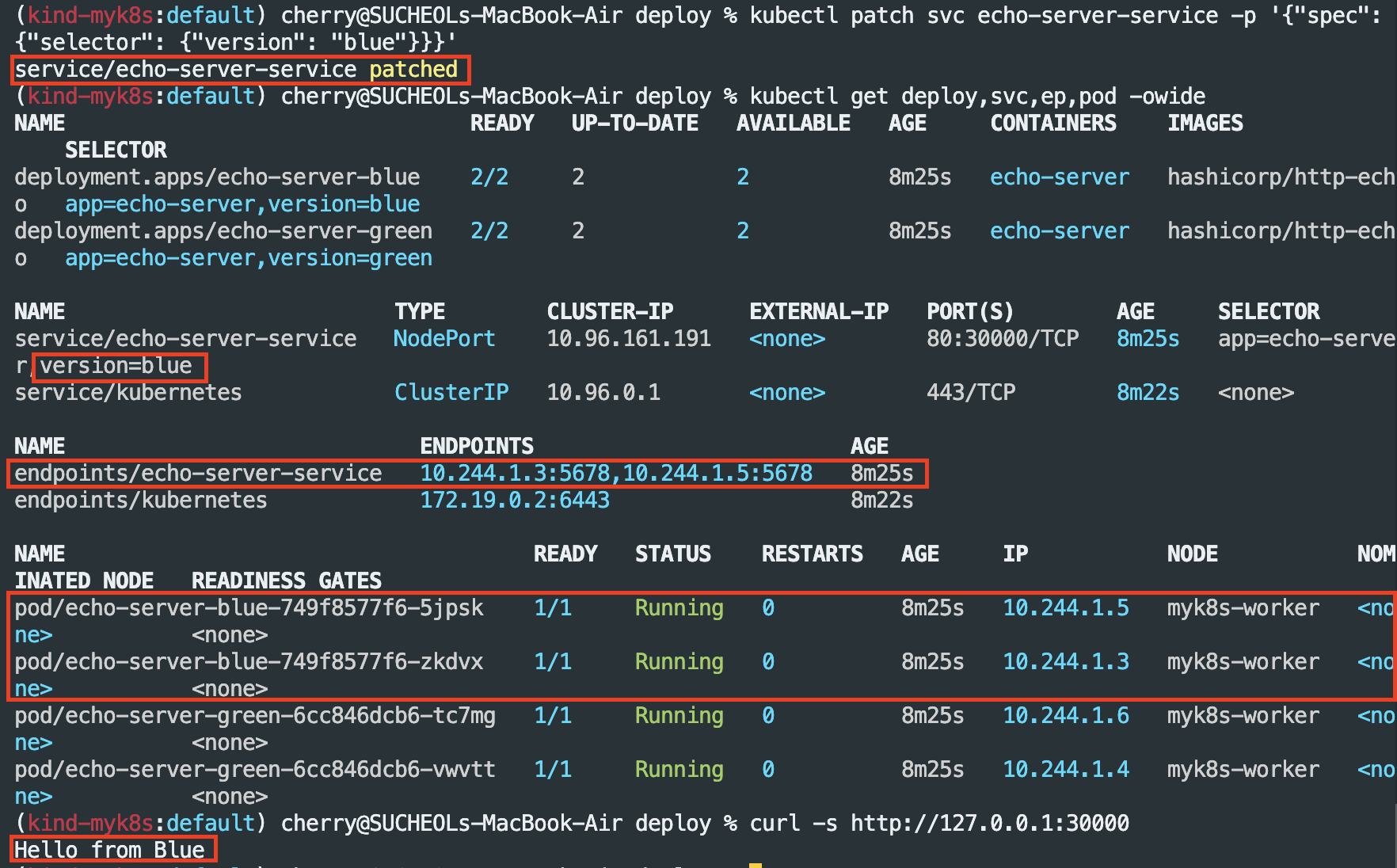
Terminal - Blue > Green 업데이트
# blue > green
kubectl patch svc echo-server-service -p '{"spec": {"selector": {"version": "green"}}}'
kubectl get deploy,svc,ep,pod -owide
curl -s http://127.0.0.1:30000

# green > blue
kubectl patch svc echo-server-service -p '{"spec": {"selector": {"version": "blue"}}}'
kubectl get deploy,svc,ep -owide
curl -s http://127.0.0.1:30000

# 삭제
kubectl delete -f .
cd ..
- Green 업데이트 완료

- Blue 업데이트 완료
Jenkins - Blue/Green 배포
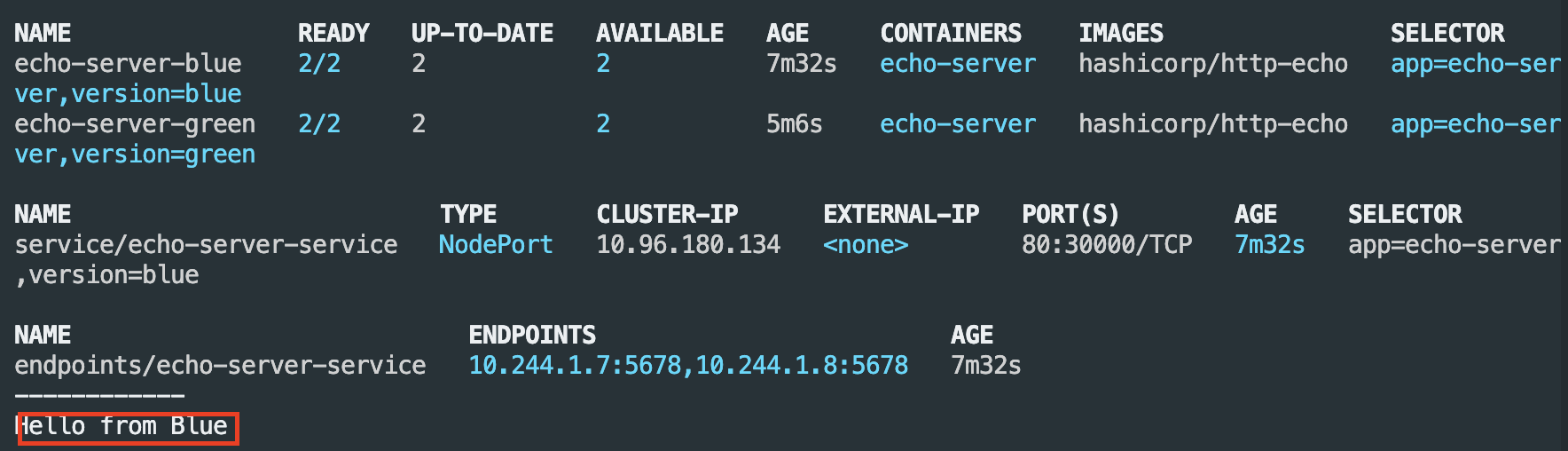
# 모니터링
while true; do curl -s --connect-timeout 1 http://127.0.0.1:30000 ; echo ; sleep 1  ; kubectl get deploy -owide ; echo ; kubectl get svc,ep echo-server-service -owide ; echo "------------" ; done

while true; do curl -s --connect-timeout 1 http://127.0.0.1:30000 ; date ; echo "------------" ; sleep 1 ; done
Jenkins - Pipeline Script작성
pipeline {
    agent any

    environment {
        KUBECONFIG = credentials('k8s-crd')
    }

    stages {
        stage('Checkout') {
            steps {
                 git branch: 'main',
                 url: 'http://172.30.1.40:3000/devops/dev-app.git',  // Git에서 코드 체크아웃
                 credentialsId: 'gogs-crd'  // Credentials ID
            }
        }

        stage('container image build') {
            steps {
                echo "container image build"
            }
        }

        stage('container image upload') {
            steps {
                echo "container image upload"
            }
        }

        stage('k8s deployment blue version') {
            steps {
                sh "kubectl apply -f ./deploy/echo-server-blue.yaml --kubeconfig $KUBECONFIG"
                sh "kubectl apply -f ./deploy/echo-server-service.yaml --kubeconfig $KUBECONFIG"
            }
        }

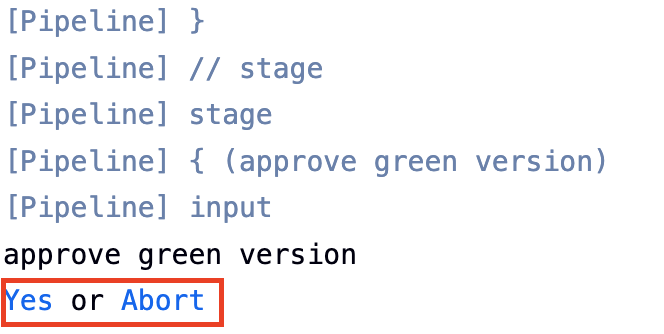
        stage('approve green version') {
            steps {
                input message: 'approve green version', ok: "Yes"
            }
        }

        stage('k8s deployment green version') {
            steps {
	        	sh "kubectl apply -f ./deploy/echo-server-green.yaml --kubeconfig $KUBECONFIG"
            }
        }

        stage('approve version switching') {
            steps {
                script {
                    returnValue = input message: 'Green switching?', ok: "Yes", parameters: [booleanParam(defaultValue: true, name: 'IS_SWITCHED')]
                    if (returnValue) {
                        sh "kubectl patch svc echo-server-service -p '{\"spec\": {\"selector\": {\"version\": \"green\"}}}' --kubeconfig $KUBECONFIG"
                    }
                }
            }
        }

        stage('Blue Rollback') {
            steps {
                script {
                    returnValue = input message: 'Blue Rollback?', parameters: [choice(choices: ['done', 'rollback'], name: 'IS_ROLLBACk')]
                    if (returnValue == "done") {
                        sh "kubectl delete -f ./deploy/echo-server-blue.yaml --kubeconfig $KUBECONFIG"
                    }
                    if (returnValue == "rollback") {
                        sh "kubectl patch svc echo-server-service -p '{\"spec\": {\"selector\": {\"version\": \"blue\"}}}' --kubeconfig $KUBECONFIG"
                    }
                }
            }
        }
    }
}
(Pipeline Script 설명)
- KUBECONFIG = credential('k8s-crd') : 자격증명 환경설정
- stage('Checkout') : gogs 코드 확인 및 자격증명 설정
- stage('container image build') : container 이미지 빌드
- stage('container image upload') : container 이미지 업로드
- stage('k8s deployment blue version') : Blue deployment 배포
- stage('approve green version') : Green 버전 승인
- stage('k8s deployment green version') : Green deployment 배포
- stage('approve version switching') : Switching(Blue > Green) 변경 Y/N 선택 후, version : blue/green 변경 유뮤
Terminal - (모니터링)Blue 배포 확인

Jenkins - 상태 확인(Green 버전 승인 필요)



kubectl delete deploy echo-server-blue echo-server-green ; kubectl delete svc echo-server-serviceJenkins CI + Argo CD + Kind(K8S)
ArgoCD - 설치
cd cicd-labs

# argocd 네임스페이스 생성
kubectl create ns argocd

# yaml 정의
cat <<EOF > argocd-values.yaml
dex:
  enabled: false

server:
  service:
    type: NodePort
    nodePortHttps: 30002
  extraArgs:
    - --insecure  # HTTPS 대신 HTTP 사용
EOF

# 설치 : Argo CD v3.1.9 , (참고) 책 버전 v2.10.5
helm repo add argo https://argoproj.github.io/argo-helm
helm install argocd argo/argo-cd --version 9.0.5 -f argocd-values.yaml --namespace argocd

# 확인
kubectl get pod,svc,ep,secret,cm -n argocd
kubectl get crd | grep argo

kubectl get appproject -n argocd -o yaml

# configmap
kubectl get cm -n argocd argocd-cm -o yaml
kubectl get cm -n argocd argocd-rbac-cm -o yaml

# 최초 접속 암호 확인
kubectl -n argocd get secret argocd-initial-admin-secret -o jsonpath="{.data.password}" | base64 -d ;echo
XxJMMJUv8MHZa-kk

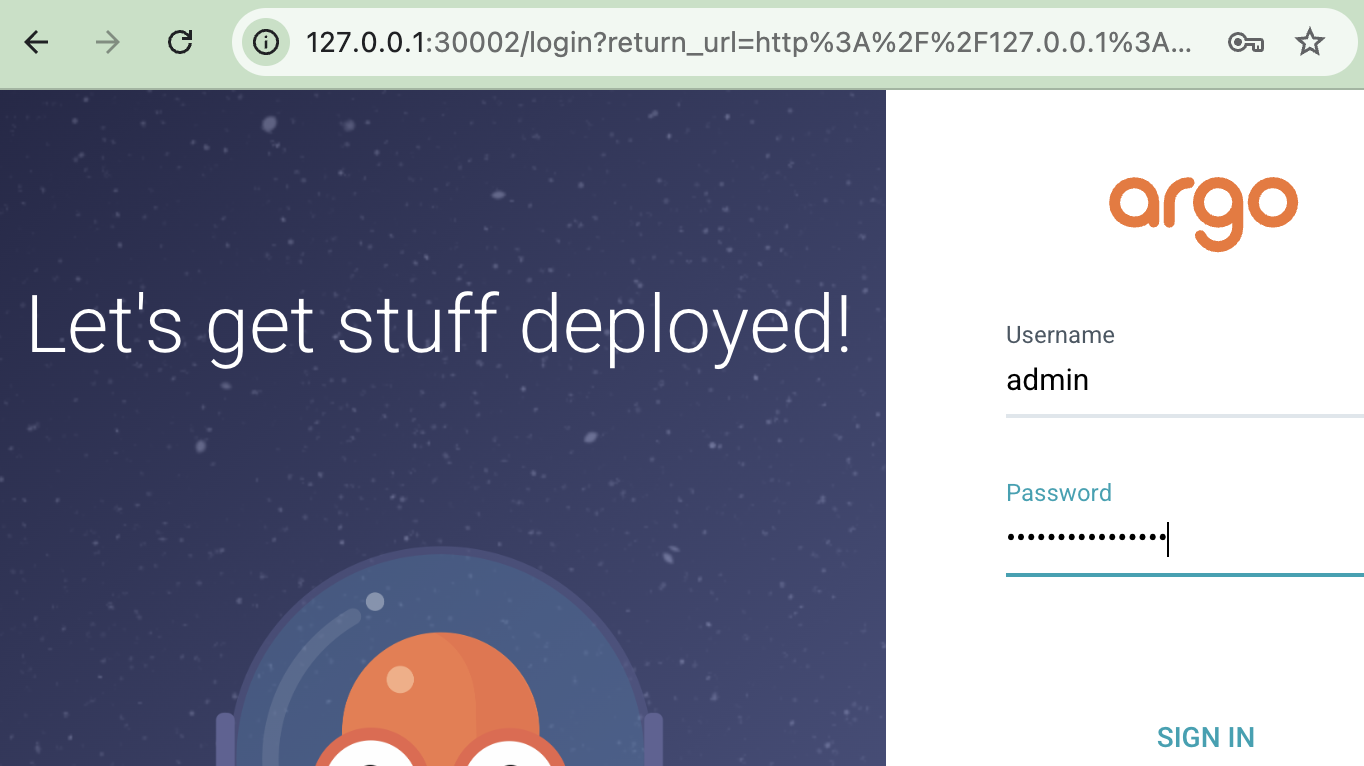
# Argo CD 웹 접속 주소 확인 : 초기 암호 입력 (admin 계정)
open "http://127.0.0.1:30002" # macOS

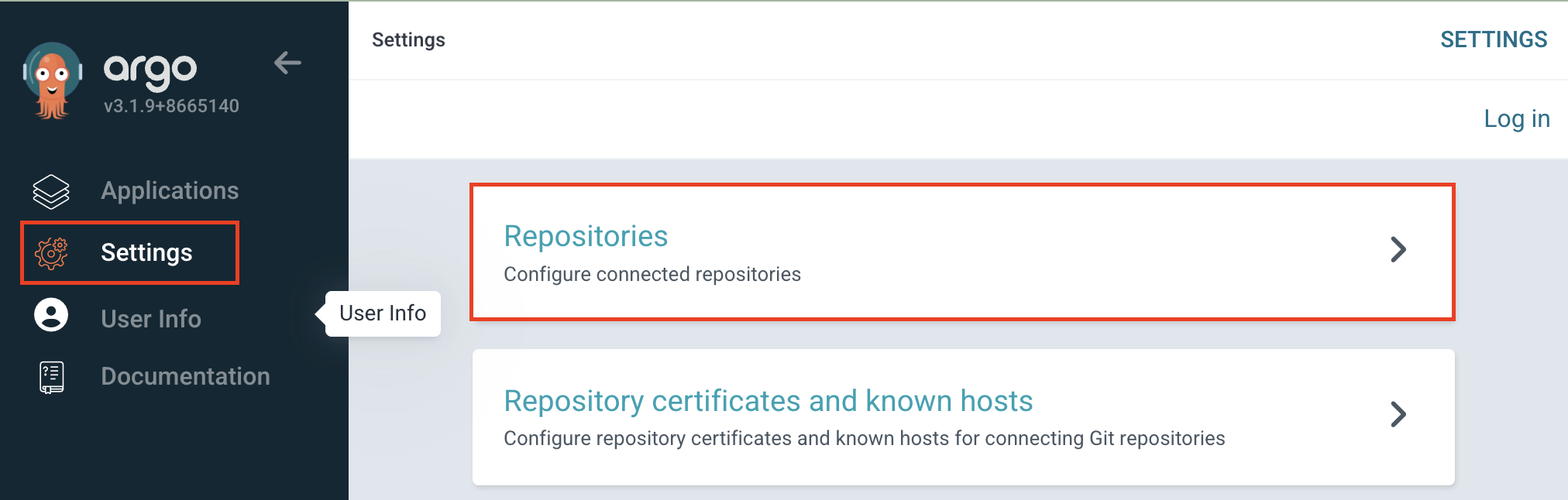
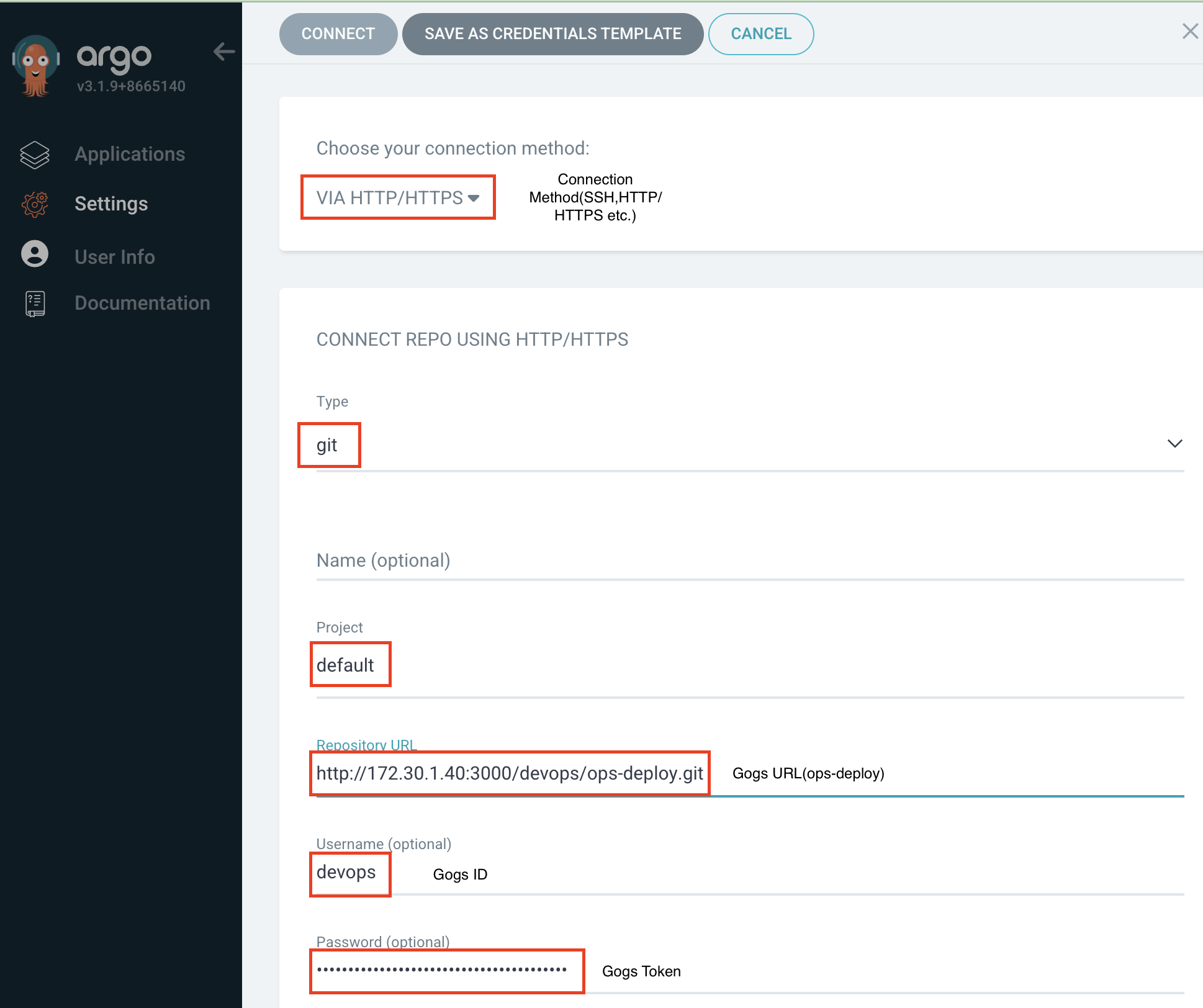
ArgoCD - ops-deploy(gogs) 등록
Terminal - Argo CD 배포
cd cicd-labs

MyIP=192.168.254.110
TOKEN=418652c282eb2b73c0cce236ac47b5c372fe9d6e
echo $MyIP $TOKEN

git clone http://devops:$TOKEN@$MyIP:172.30.1.40:3000/devops/ops-deploy.git
cd ops-deploy

git config --local user.name "devops"
git config --local user.email "a@a.com"
git config --local init.defaultBranch main
git config --local credential.helper store
git --no-pager config --local --list
git --no-pager branch
git remote -v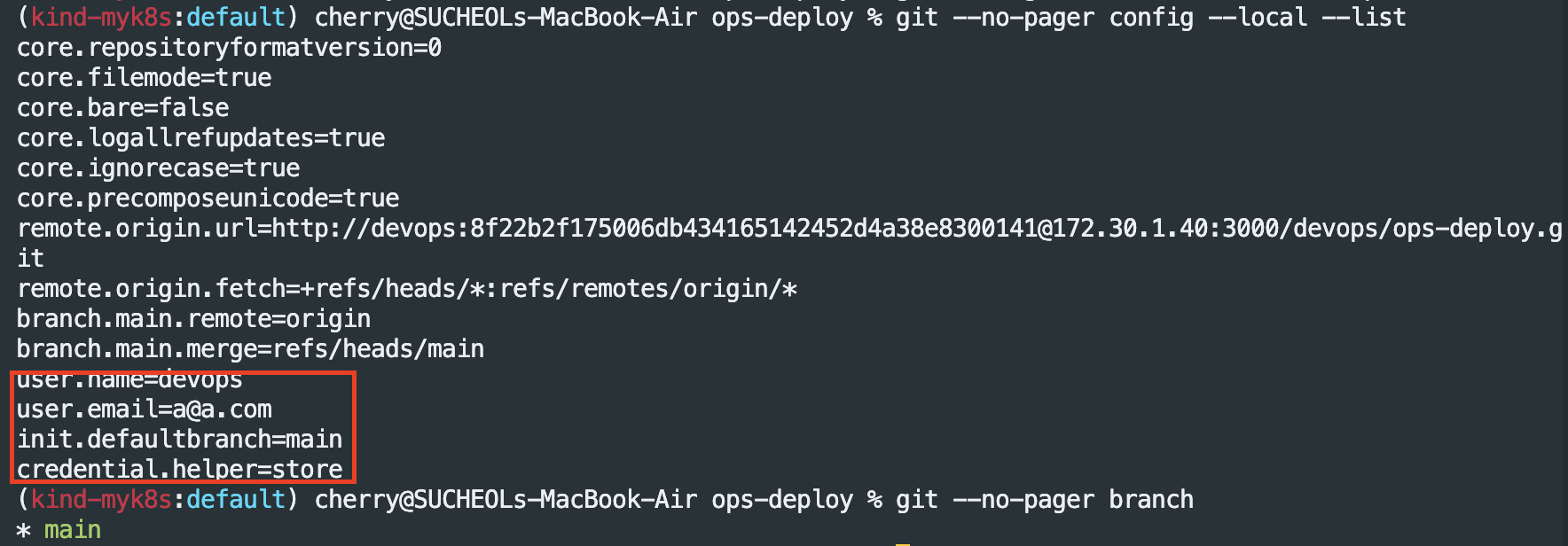
#
VERSION=1.26.1
mkdir nginx-chart
mkdir nginx-chart/templates

cat > nginx-chart/VERSION <<EOF
$VERSION
EOF

cat > nginx-chart/templates/configmap.yaml <<EOF
apiVersion: v1
kind: ConfigMap
metadata:
  name: {{ .Release.Name }}
data:
  index.html: |
{{ .Values.indexHtml | indent 4 }}
EOF

cat > nginx-chart/templates/deployment.yaml <<EOF
apiVersion: apps/v1
kind: Deployment
metadata:
  name: {{ .Release.Name }}
spec:
  replicas: {{ .Values.replicaCount }}
  selector:
    matchLabels:
      app: {{ .Release.Name }}
  template:
    metadata:
      labels:
        app: {{ .Release.Name }}
    spec:
      containers:
      - name: nginx
        image: {{ .Values.image.repository }}:{{ .Values.image.tag }}
        ports:
        - containerPort: 80
        volumeMounts:
        - name: index-html
          mountPath: /usr/share/nginx/html/index.html
          subPath: index.html
      volumes:
      - name: index-html
        configMap:
          name: {{ .Release.Name }}
EOF

cat > nginx-chart/templates/service.yaml <<EOF
apiVersion: v1
kind: Service
metadata:
  name: {{ .Release.Name }}
spec:
  selector:
    app: {{ .Release.Name }}
  ports:
  - protocol: TCP
    port: 80
    targetPort: 80
    nodePort: 30000
  type: NodePort
EOF

cat > nginx-chart/values-dev.yaml <<EOF
indexHtml: |
  <!DOCTYPE html>
  <html>
  <head>
    <title>Welcome to Nginx!</title>
  </head>
  <body>
    <h1>Hello, Kubernetes!</h1>
    <p>DEV : Nginx version $VERSION</p>
  </body>
  </html>

image:
  repository: nginx
  tag: $VERSION

replicaCount: 1
EOF

cat > nginx-chart/values-prd.yaml <<EOF
indexHtml: |
  <!DOCTYPE html>
  <html>
  <head>
    <title>Welcome to Nginx!</title>
  </head>
  <body>
    <h1>Hello, Kubernetes!</h1>
    <p>PRD : Nginx version $VERSION</p>
  </body>
  </html>

image:
  repository: nginx
  tag: $VERSION

replicaCount: 2
EOF

cat > nginx-chart/Chart.yaml <<EOF
apiVersion: v2
name: nginx-chart
description: A Helm chart for deploying Nginx with custom index.html
type: application
version: 1.0.0
appVersion: "$VERSION"
EOF


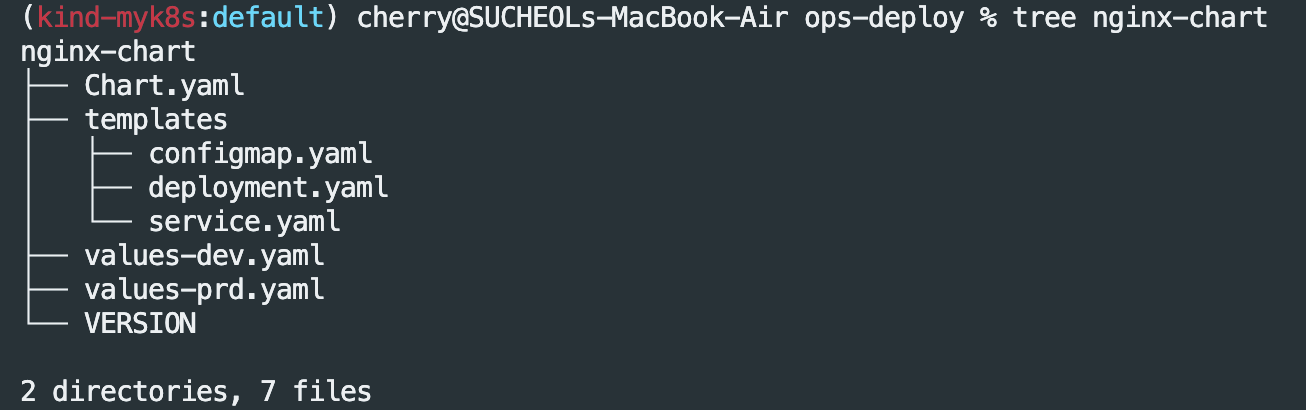
tree nginx-chart

# git push
git status && git add . && git commit -m "Add nginx helm chart" && git push -u origin main
(설명)
nginx-chart/Chart.yaml - 차트의 이름(nginx-chart), 설명, 버전(1.0.0), 앱 버전(1.26.1) 등 메타데이터를 정의합니다.
nginx-chart/values-dev.yaml - 개발(DEV) 환경을 위한 설정값 파일입니다.
nginx-chart/values-prd.yaml - 운영(PRD) 환경을 위한 설정값 파일입니다.
nginx-chart/VERSION - 파일 생성 스크립트에서 사용할 Nginx 버전을 저장하는 변수입니다.
nginx-chart/templates/deployment.yaml - Nginx Pod를 배포하고 관리하는 Kubernetes Deployment를 생성하는 템플릿입니다.
nginx-chart/templates/service.yaml - Nginx Pod에 외부에서 접근할 수 있도록 네트워크를 열어주는 Kubernetes Service를 생성하는 템플릿입니다.
nginx-chart/templates/configmap.yaml - Nginx가 웹페이지로 보여줄 index.html 파일의 내용을 담는 Kubernetes ConfigMap을 생성하는 템플릿입니다.

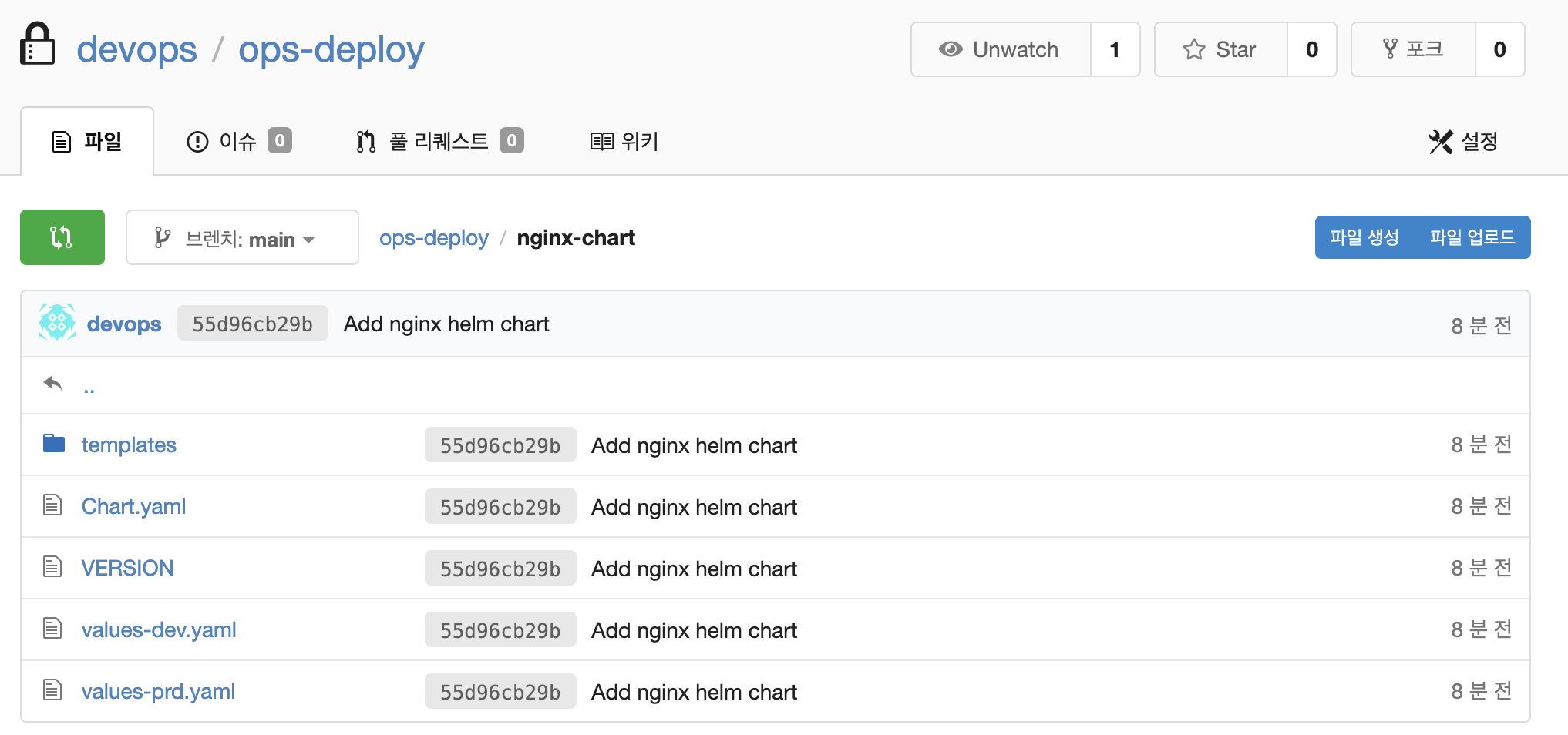
ArgoCD - Applications 생성


ArgoCD - Application 생성 완료(

Out Of Sync가 발생하는 원인은 현재 동기화가 되지 않은 상태이다.(애플리케이션을 등록만 하고 배포는 하지 않은 상태)
kubectl get applications -n argocd
NAME        SYNC STATUS   HEALTH STATUS
dev-nginx   OutOfSync     Missing

kubectl describe applications -n argocd dev-nginx

# 상태 모니터링
kubectl get applications -n argocd -w

# 반복 접속 시도
while true; do curl -s --connect-timeout 1 http://127.0.0.1:30000 ; date ; echo "------------" ; sleep 1 ; done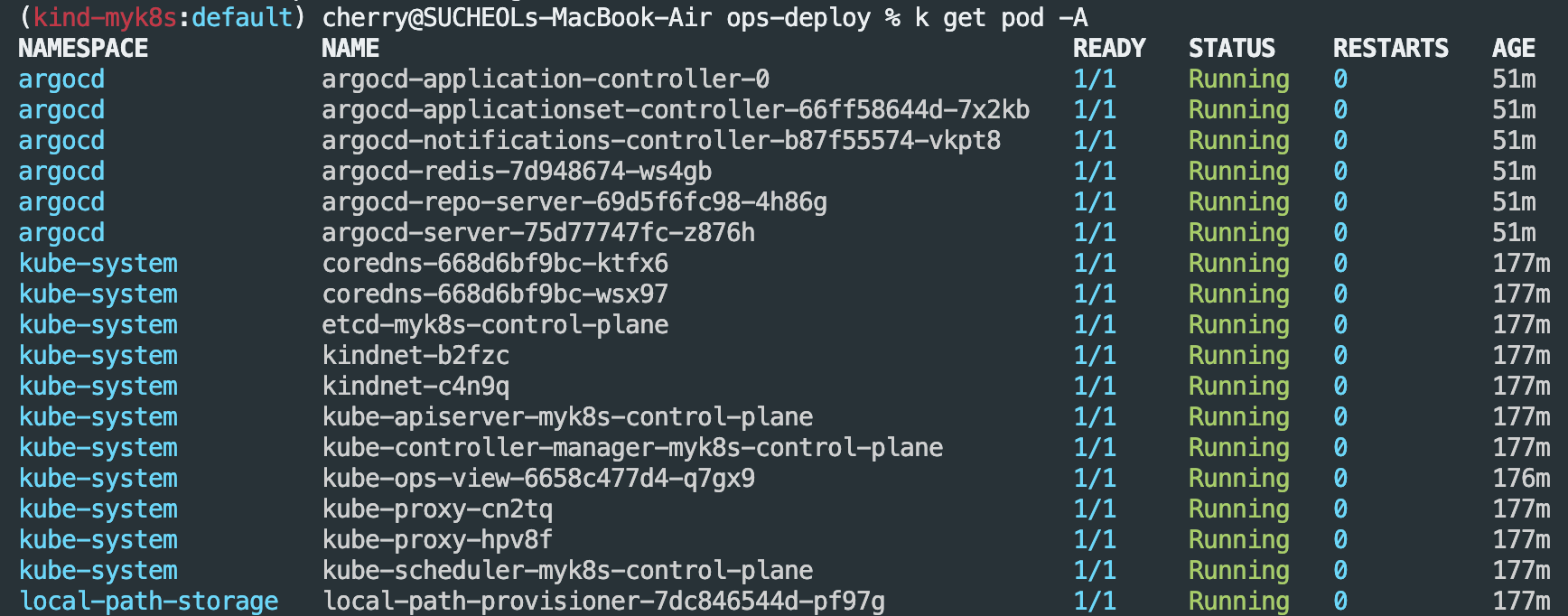
위 파드를 확인 시 dev-ngin 네임스페이스로 존재하는 Pod가 없어 배포가 되지 않은 상태를 확인할 수 있다.


ArgoCD - Applications 배포(Sync)


ArgoCD - 배포 확인

# 아래 처럼 yaml 로 APP 생성 가능
kubectl get applications -n argocd
kubectl get applications -n argocd -o yaml | kubectl neat

# 배포 확인
kubectl get all -n dev-nginx -o wide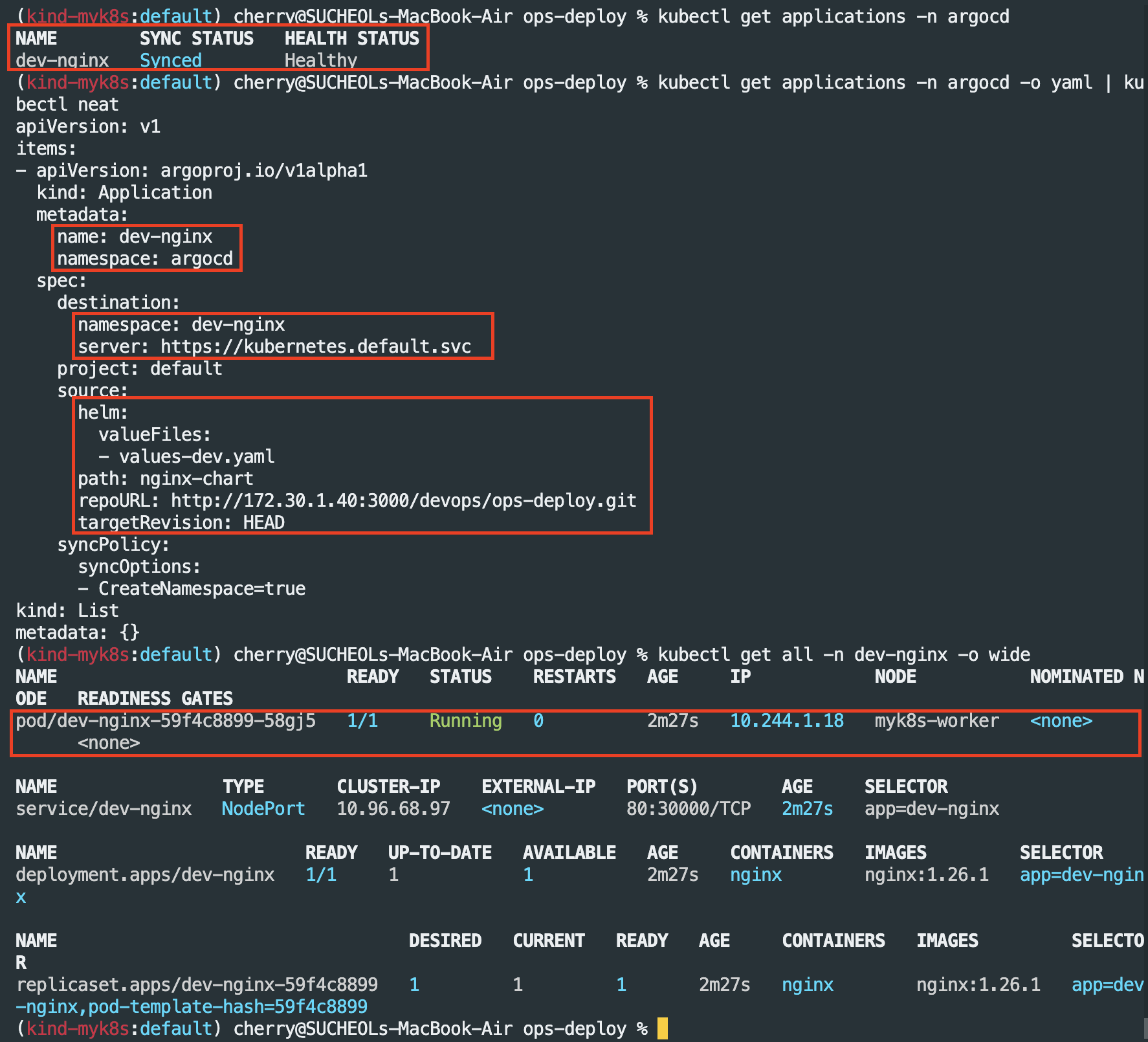

Terminal - k8s 라이브 수정을 위해 반복 접속 및 모니터링
connect-timeout 1 http://127.0.0.1:30000 ; date ; echo "------------" ; sleep 1 ; done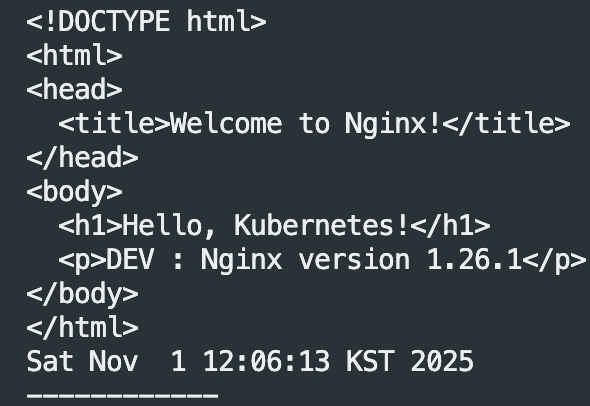
ArgoCD - config파일 수정

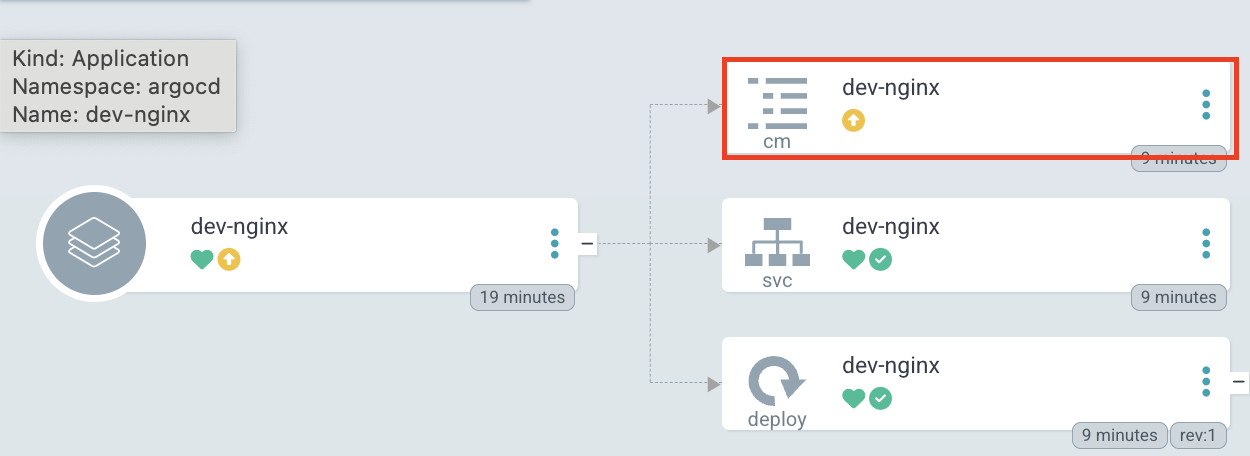
[ 원인 확인 ]
kubectl get cm -n dev-nginx dev-nginx -o yaml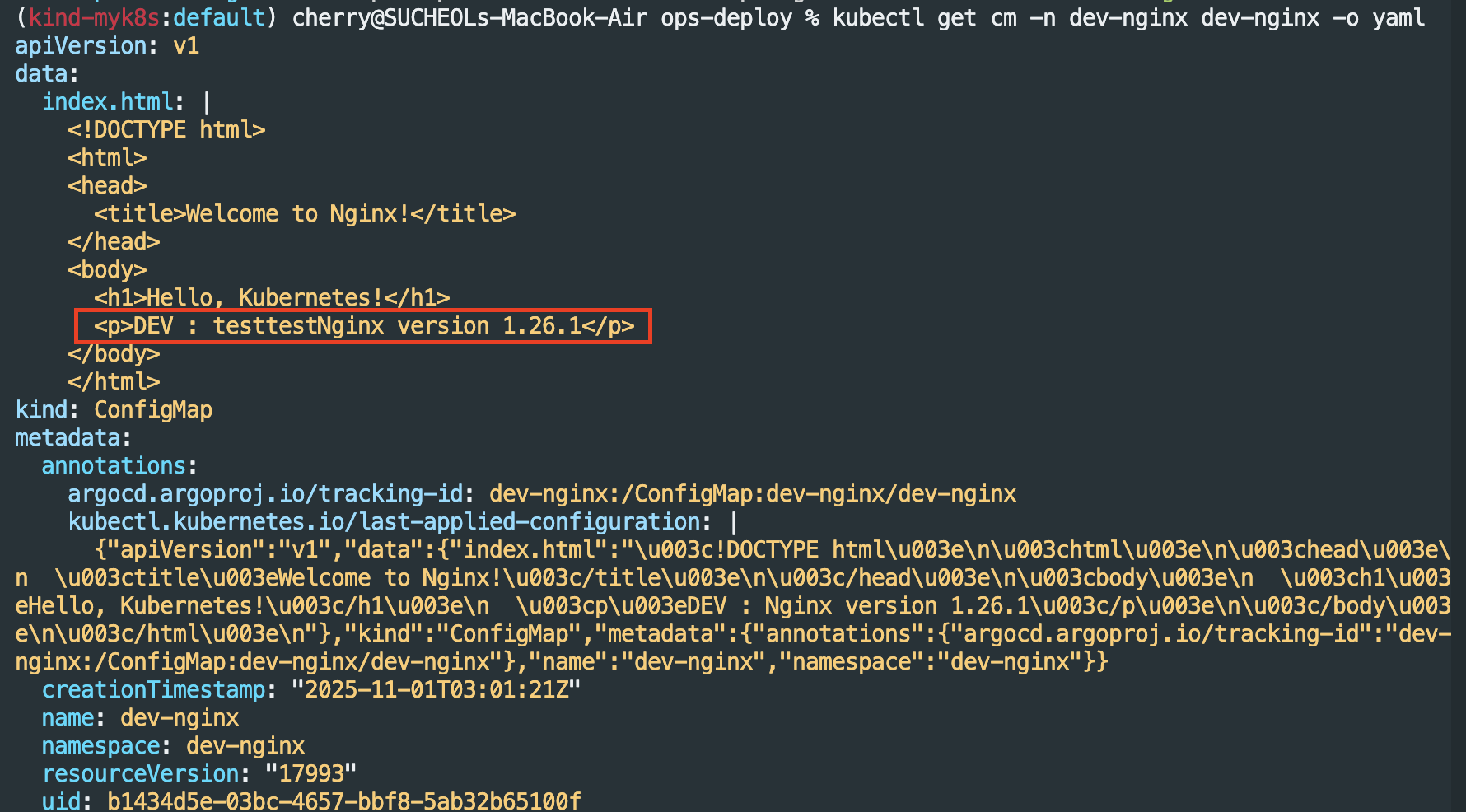
config파일은 변경이 되었지만 실제 배포에서는 정상적으로 반영이 되지 않은 것으로 보인다. 이럴 경우 Rollout이 필요합니다.
Terminal - Rollout 실행 후 모니터링
# kubectl 로 직접 k8s 추가 시 >> 이후 ArgoCD LIVE 에서 확인!
kubectl get cm -n dev-nginx dev-nginx --show-labels
kubectl label cm dev-nginx -n dev-nginx study=aews
kubectl get cm -n dev-nginx dev-nginx --show-labels

# 변경된 CM 적용을 위해서 롤아웃
kubectl rollout restart deployment -n dev-nginx dev-nginx

#
while true; do curl -s --connect-timeout 1 http://127.0.0.1:30000 ; date ; echo "------------" ; sleep 1 ; done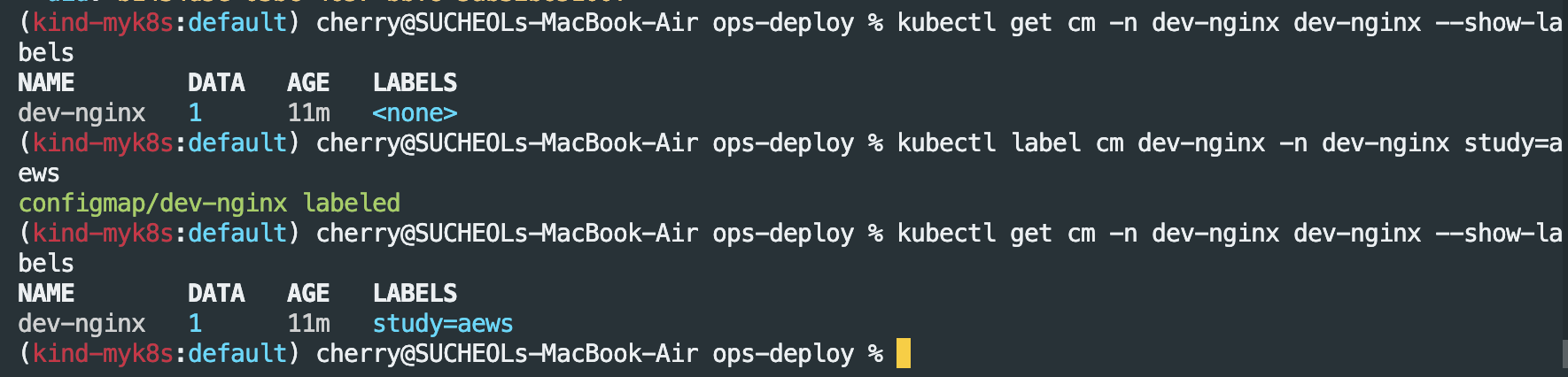
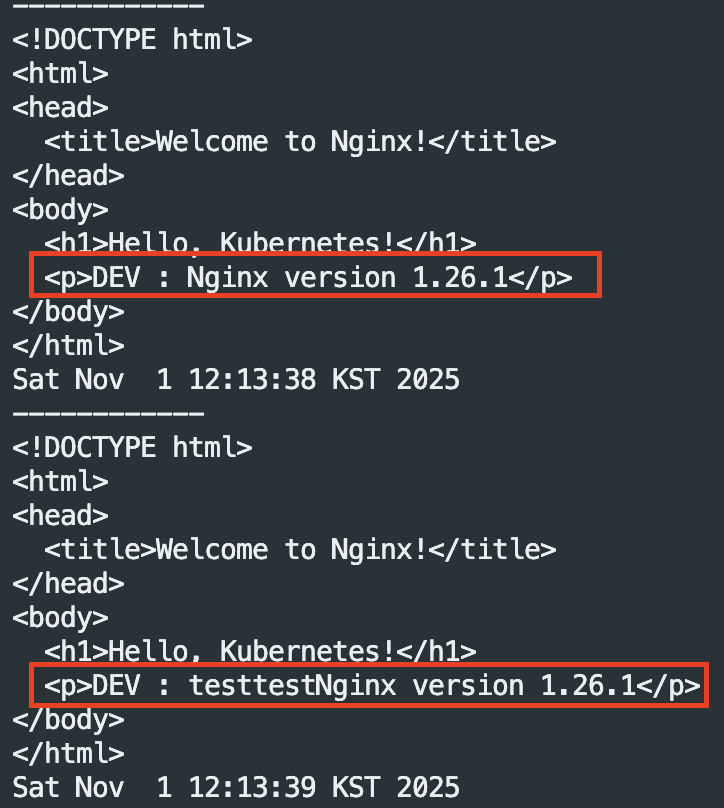
Terminal - 코드 수정 후 반영 확인
#
VERSION=1.26.2

cat > nginx-chart/VERSION <<EOF
$VERSION
EOF

cat > nginx-chart/values-dev.yaml <<EOF
indexHtml: |
  <!DOCTYPE html>
  <html>
  <head>
    <title>Welcome to Nginx!</title>
  </head>
  <body>
    <h1>Hello, Kubernetes!</h1>
    <p>DEV : Nginx version $VERSION</p>
  </body>
  </html>

image:
  repository: nginx
  tag: $VERSION

replicaCount: 2
EOF

cat > nginx-chart/values-prd.yaml <<EOF
indexHtml: |
  <!DOCTYPE html>
  <html>
  <head>
    <title>Welcome to Nginx!</title>
  </head>
  <body>
    <h1>Hello, Kubernetes!</h1>
    <p>PRD : Nginx version $VERSION</p>
  </body>
  </html>

image:
  repository: nginx
  tag: $VERSION

replicaCount: 2
EOF

cat > nginx-chart/Chart.yaml <<EOF
apiVersion: v2
name: nginx-chart
description: A Helm chart for deploying Nginx with custom index.html
type: application
version: 1.0.0
appVersion: "$VERSION"
EOF

git status && git add . && git commit -m "Update nginx version $(cat nginx-chart/VERSION)" && git push -u origin main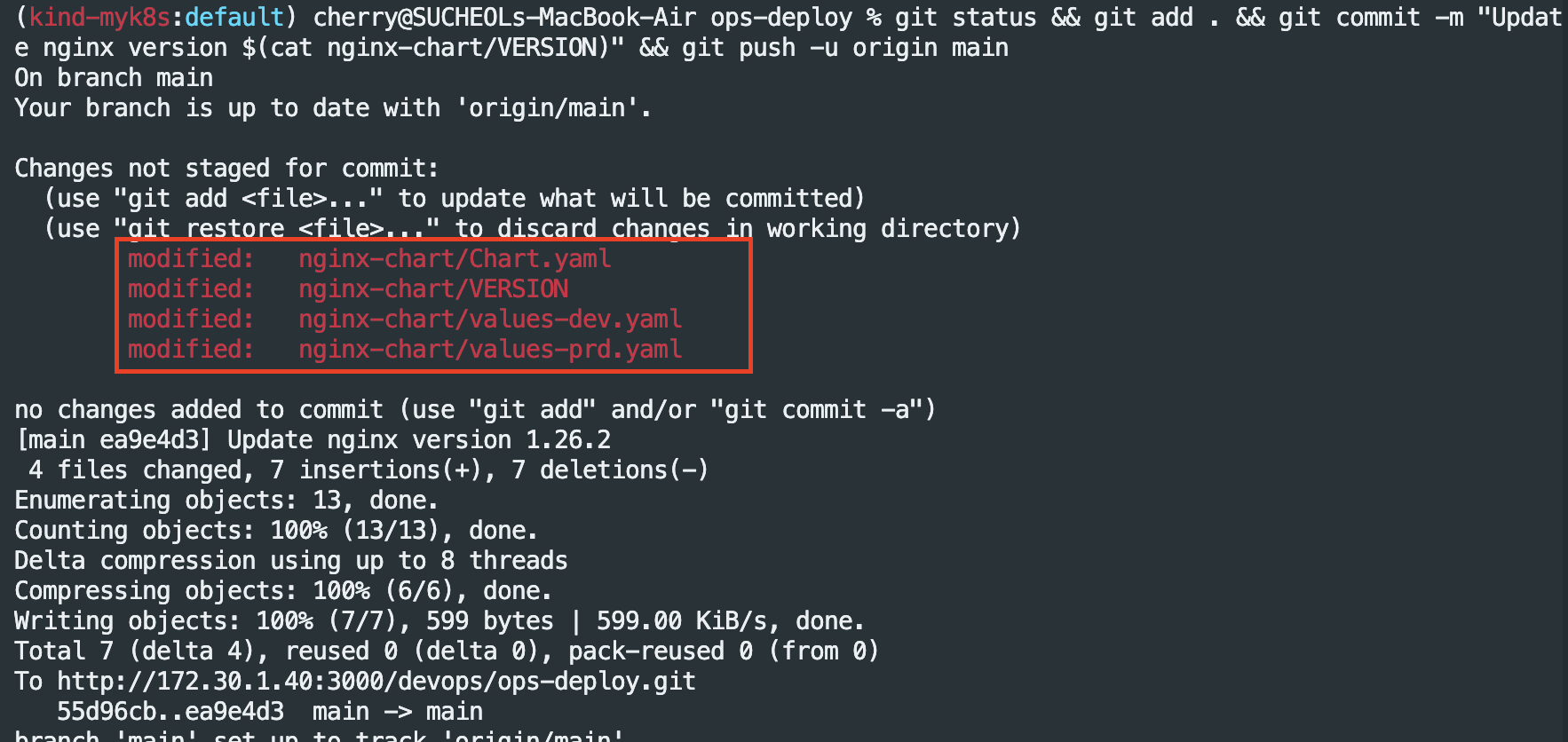
Argo CD - 콘솔 확인(OutOfSync 발생 확인)
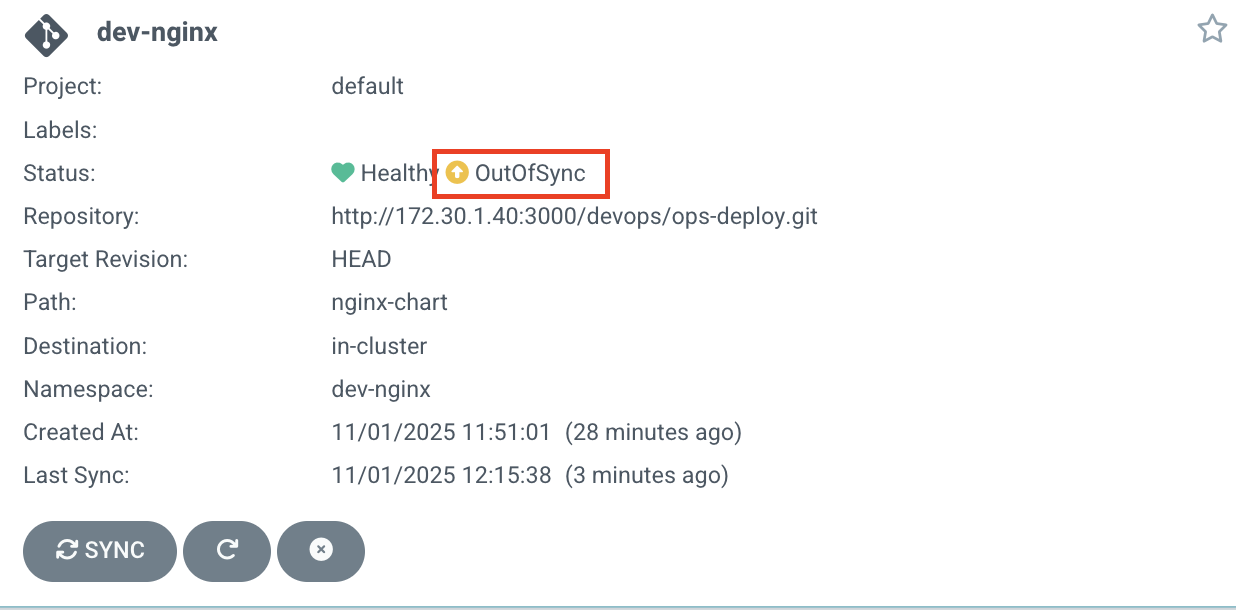
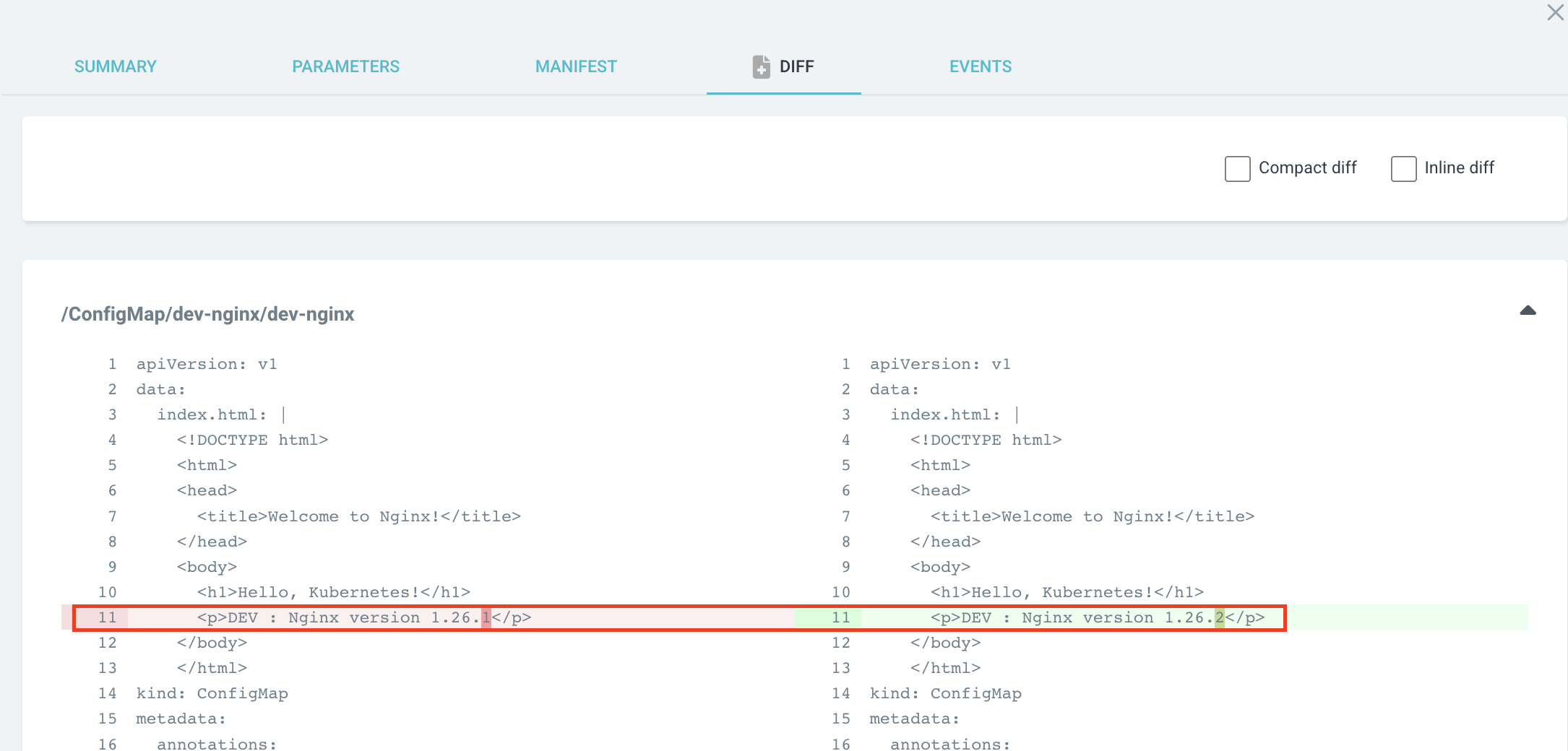
배포된 버전(1.26.1)과 등록한 버전(1.26.2)이 달라 OutOfSync가 발생하였다. ArgoCD에서 동기화 타임아웃 설정을 확인하기 위해서는 아래 명령어를 입력해야 한다.
kubectl get cm -n argocd argocd-cm -o yaml | grep timeout
timeout.reconciliation: 180s - 해당 내용이 Argo CD의 기본 동기화 시간제한입니다.(180초)
timeout.hard.reconciliation : 0s - 강제 동기화(Represh 버튼 클릭)
ArgoCD - 동기화 및 nginx 버전 변경 확인
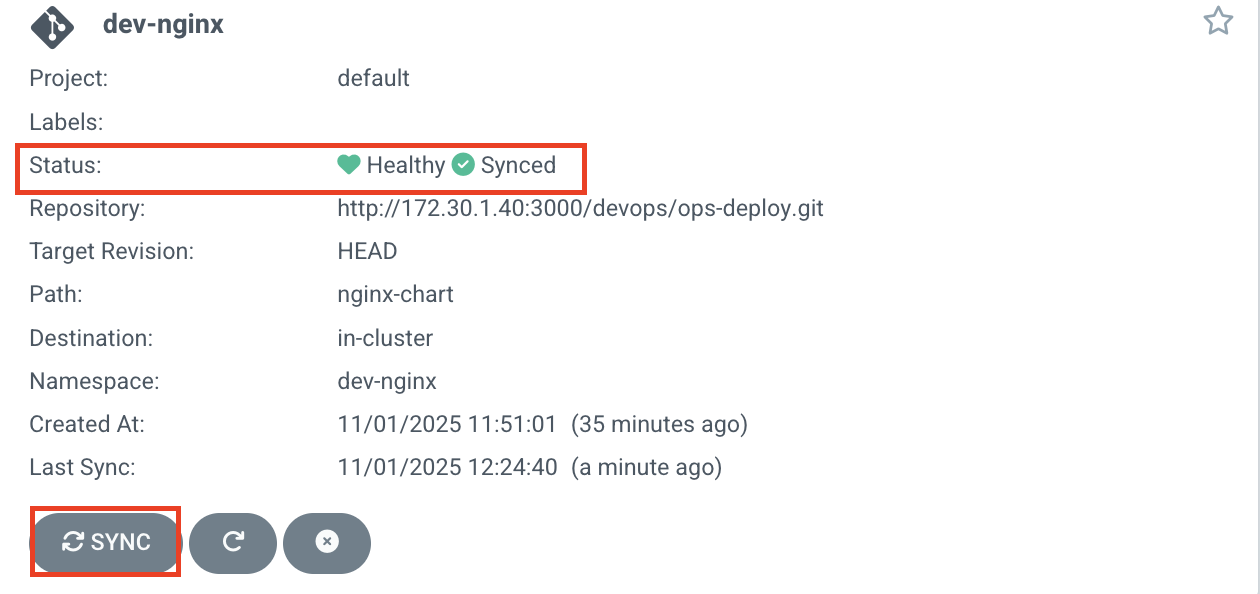
kubectl get all -n dev-nginx -o wide

K8S Finalizers 와 Argo Finalizers 동작

- Kubernetes에서 finalizers는 리소스의 metadata.finalizers 필드에 정의된 이름 목록으로, 리소스가 삭제 요청을 받았을 때(즉, kubectl delete나 API 호출로 삭제가 시작될 때) 바로 제거되지 않고, 지정된 작업이 완료될 때까지 "종료 중"(Terminating) 상태로 유지되게 합니다.
- ArgoCD는 이 메커니즘을 활용해 애플리케이션 삭제 시 관리 대상 리소스의 정리(cleanup)를 제어합니다.
- ArgoCD에서 가장 흔히 사용되는 finalizer는 resources-finalizer.argocd.argoproj.io입니다. 이 finalizer는 애플리케이션이 삭제될 때 해당 애플리케이션이 관리하는 모든 리소스(예: Pod, Service, ConfigMap 등)를 함께 삭제하도록 보장합니다.
- ArgoCD Finalizers의 목적
- 리소스 정리 보장: 애플리케이션 삭제 시 관련 리소스가 남지 않도록 보장합니다. 이는 GitOps 워크플로우에서 선언적 상태를 유지하는 데 중요합니다.
- 의도치 않은 삭제 방지: finalizer가 없으면 실수로 Argo App을 삭제해도 K8S 리소스가 남아 혼란이 생길 수 있습니다. finalizer는 이를 방지합니다.
- App of Apps 패턴 지원: 여러 애플리케이션을 계층적으로 관리할 때, 상위 애플리케이션 삭제 시 하위 리소스까지 정리되도록 합니다.
- 실습
MyIP=172.30.1.40
echo $MyIP

cat <<EOF | kubectl apply -f -
apiVersion: argoproj.io/v1alpha1
kind: Application
metadata:
  name: dev-nginx
  namespace: argocd
  finalizers:
  - resources-finalizer.argocd.argoproj.io
spec:
  project: default
  source:
    helm:
      valueFiles:
      - values-dev.yaml
    path: nginx-chart
    repoURL: http://$MyIP:3000/devops/ops-deploy
    targetRevision: HEAD
  syncPolicy:
    automated:
      prune: true
    syncOptions:
    - CreateNamespace=true
  destination:
    namespace: dev-nginx
    server: https://kubernetes.default.svc
EOF

#
kubectl get applications -n argocd dev-nginx
kubectl get applications -n argocd dev-nginx -o yaml
kubectl describe applications -n argocd dev-nginx
...
  Finalizers:
    resources-finalizer.argocd.argoproj.io
...
kubectl get pod,svc,ep,cm -n dev-nginx

#
curl http://127.0.0.1:30000
open http://127.0.0.1:30000

# Argo CD App 삭제
kubectl delete applications -n argocd dev-nginx


Terminal - ArgoCD App 삭제
cat <<EOF | kubectl apply -f -
apiVersion: argoproj.io/v1alpha1
kind: Application
metadata:
  name: timeserver
  namespace: argocd
  finalizers:
  - resources-finalizer.argocd.argoproj.io
spec:
  project: default
  source:
    path: dev-app
    repoURL: http://$MyIP:3000/devops/ops-deploy
    targetRevision: HEAD
  syncPolicy:
    automated:
      prune: true
    syncOptions:
    - CreateNamespace=true
  destination:
    namespace: default
    server: https://kubernetes.default.svc
EOF
# Argo CD App 삭제
kubectl delete application -n argocd dev-nginx
gogs - ops-deploy 저장소 Webhook 설정
- gogs > ops-deploy(저장소) > settings > webhooks 설정
페이로드 - http://172.30.1.40:30002/api/webhook

- Delivery Teest

Terminal - dev-nginx App 생성 및 Auto SYNC
echo $MyIP

cat <<EOF | kubectl apply -f -
apiVersion: argoproj.io/v1alpha1
kind: Application
metadata:
  name: dev-nginx
  namespace: argocd
  finalizers:
  - resources-finalizer.argocd.argoproj.io
spec:
  project: default
  source:
    helm:
      valueFiles:
      - values-dev.yaml
    path: nginx-chart
    repoURL: http://$MyIP:3000/devops/ops-deploy
    targetRevision: HEAD
  syncPolicy:
    automated:
      prune: true
    syncOptions:
    - CreateNamespace=true
  destination:
    namespace: dev-nginx
    server: https://kubernetes.default.svc
EOF


#
kubectl get applications -n argocd dev-nginx
kubectl get applications -n argocd dev-nginx -o yaml | kubectl neat
kubectl describe applications -n argocd dev-nginx
kubectl get pod,svc,ep,cm -n dev-nginx

#
curl http://127.0.0.1:30000
open http://127.0.0.1:30000
Terminal - Gogs 업데이트 이후 ArgoCD 즉시 반영 확인
#
cd cicd-labs/ops-deploy/nginx-chart

# replicas 2 > 3
sed -i "s|replicaCount: 2|replicaCount: 3|g" values-dev.yaml
git add values-dev.yaml && git commit -m "Modify nginx-chart : values-dev.yaml" && git push -u origin main
watch -d kubectl get all -n dev-nginx -o wide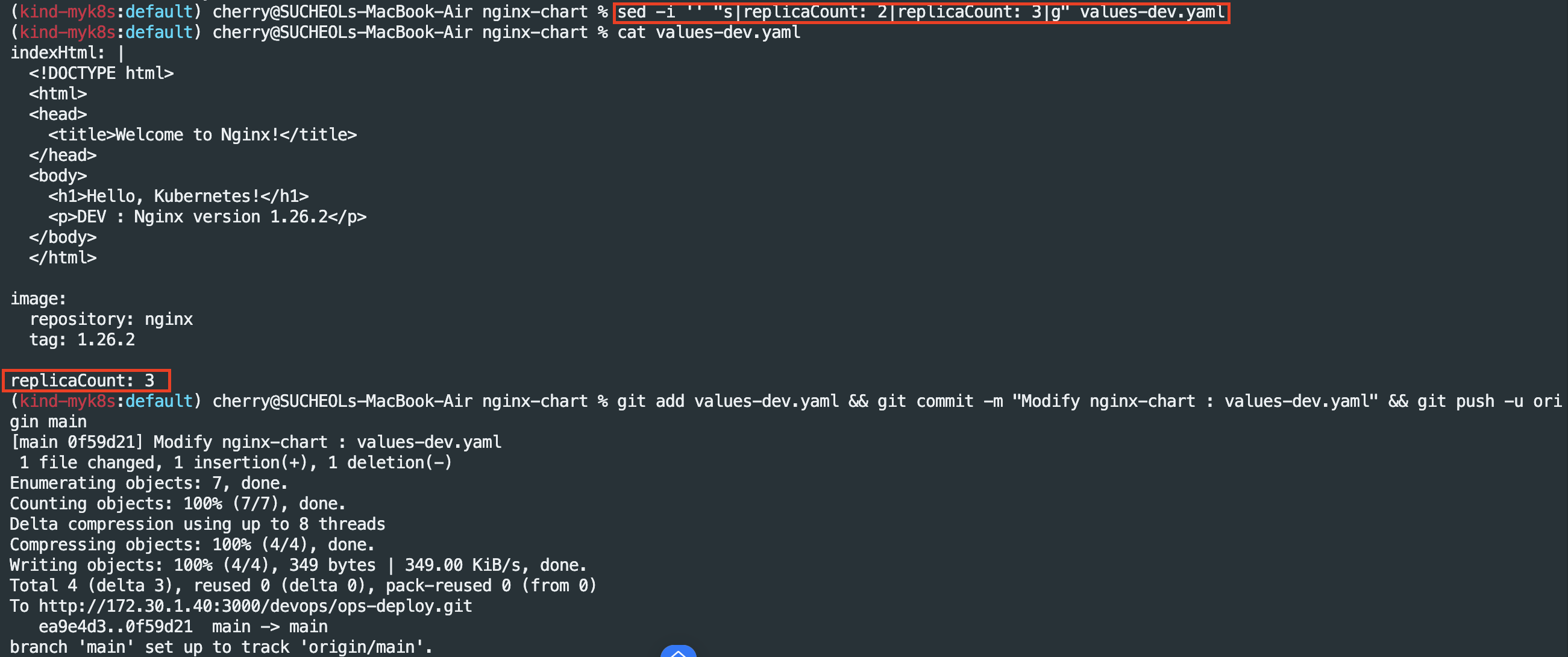

# replicas 3 > 4
sed -i "s|replicaCount: 3|replicaCount: 4|g" values-dev.yaml
git add values-dev.yaml && git commit -m "Modify nginx-chart : values-dev.yaml" && git push -u origin main
watch -d kubectl get all -n dev-nginx -o wide

# replicas 4 > 2
sed -i "s|replicaCount: 4|replicaCount: 2|g" values-dev.yaml
git add values-dev.yaml && git commit -m "Modify nginx-chart : values-dev.yaml" && git push -u origin main
watch -d kubectl get all -n dev-nginx -o wide

Jenkins CI + Argo CD + K8S(Kind)

Gogs- ops-deploy 기본 코드 작성
# 도커 정보
DHUSER={도커 허브 계정}

# 버전 정보
VERSION=0.0.1

# VERSION 파일 생성
cat > dev-app/VERSION <<EOF
$VERSION
EOF

# timeserver.yaml 파일 생성
cat > dev-app/timeserver.yaml <<EOF
apiVersion: apps/v1
kind: Deployment
metadata:
  name: timeserver
spec:
  replicas: 2
  selector:
    matchLabels:
      pod: timeserver-pod
  template:
    metadata:
      labels:
        pod: timeserver-pod
    spec:
      containers:
      - name: timeserver-container
        image: docker.io/$DHUSER/dev-app:$VERSION
        livenessProbe:
          initialDelaySeconds: 30
          periodSeconds: 30
          httpGet:
            path: /healthz
            port: 80
            scheme: HTTP
          timeoutSeconds: 5
          failureThreshold: 3
          successThreshold: 1
      imagePullSecrets:
      - name: dockerhub-secret
EOF

# service.yaml 파일 생성
cat > dev-app/service.yaml <<EOF
apiVersion: v1
kind: Service
metadata:
  name: timeserver
spec:
  selector:
    pod: timeserver-pod
  ports:
  - port: 80
    targetPort: 80
    protocol: TCP
    nodePort: 30000
  type: NodePort
EOF

# Tree 구조 확인
tree
# gogs 업데이트
git add . && git commit -m "Add dev-app deployment yaml" && git push -u origin main

Repo(ops-deploy) 를 바라보는 ArgoCD App 생성


Repo(dev-app) Jenkinsfile 수정
pipeline {
    agent any
    environment {
        DOCKER_IMAGE = '<자신의 도커 허브 계정>/dev-app' // Docker 이미지 이름
        GOGSCRD = credentials('gogs-crd')
    }
    stages {
        stage('dev-app Checkout') {
            steps {
                 git branch: 'main',
                 url: 'http://<자신의 IP>:3000/devops/dev-app.git',  // Git에서 코드 체크아웃
                 credentialsId: 'gogs-crd'  // Credentials ID
            }
        }
        stage('Read VERSION') {
            steps {
                script {
                    // VERSION 파일 읽기
                    def version = readFile('VERSION').trim()
                    echo "Version found: ${version}"
                    // 환경 변수 설정
                    env.DOCKER_TAG = version
                }
            }
        }
        stage('Docker Build and Push') {
            steps {
                script {
                    docker.withRegistry('https://index.docker.io/v1/', 'dockerhub-crd') {
                        // DOCKER_TAG 사용
                        def appImage = docker.build("${DOCKER_IMAGE}:${DOCKER_TAG}")
                        appImage.push()
                        appImage.push("latest")
                    }
                }
            }
        }
        stage('ops-deploy Checkout') {
            steps {
                 git branch: 'main',
                 url: 'http://<자신의 IP>:3000/devops/ops-deploy.git',  // Git에서 코드 체크아웃
                 credentialsId: 'gogs-crd'  // Credentials ID
            }
        }
        stage('ops-deploy version update push') {
            steps {
                sh '''
                OLDVER=$(cat dev-app/VERSION)
                NEWVER=$(echo ${DOCKER_TAG})
                sed -i "s|$OLDVER|$NEWVER|" dev-app/timeserver.yaml
                sed -i "s|$OLDVER|$NEWVER|" dev-app/VERSION
                git add ./dev-app
                git config user.name "devops"
                git config user.email "a@a.com"
                git commit -m "version update ${DOCKER_TAG}"
                git push http://${GOGSCRD_USR}:${GOGSCRD_PSW}@<자신의 IP>:3000/devops/ops-deploy.git
                '''
            }
        }
    }
    post {
        success {
            echo "Docker image ${DOCKER_IMAGE}:${DOCKER_TAG} has been built and pushed successfully!"
        }
        failure {
            echo "Pipeline failed. Please check the logs."
        }
    }
}
Jenkins - SCM-Pipeline 실행
cd cicd-labs/dev-app

# VERSION, server.py 수정(0.0.4)

# git push : VERSION, server.py, Jenkinsfile
git add . && git commit -m "VERSION $(cat VERSION) Changed" && git push -u origin main

Gogs - devops/dev-app 저장소 확인

Gogs - devops/ops-deploy

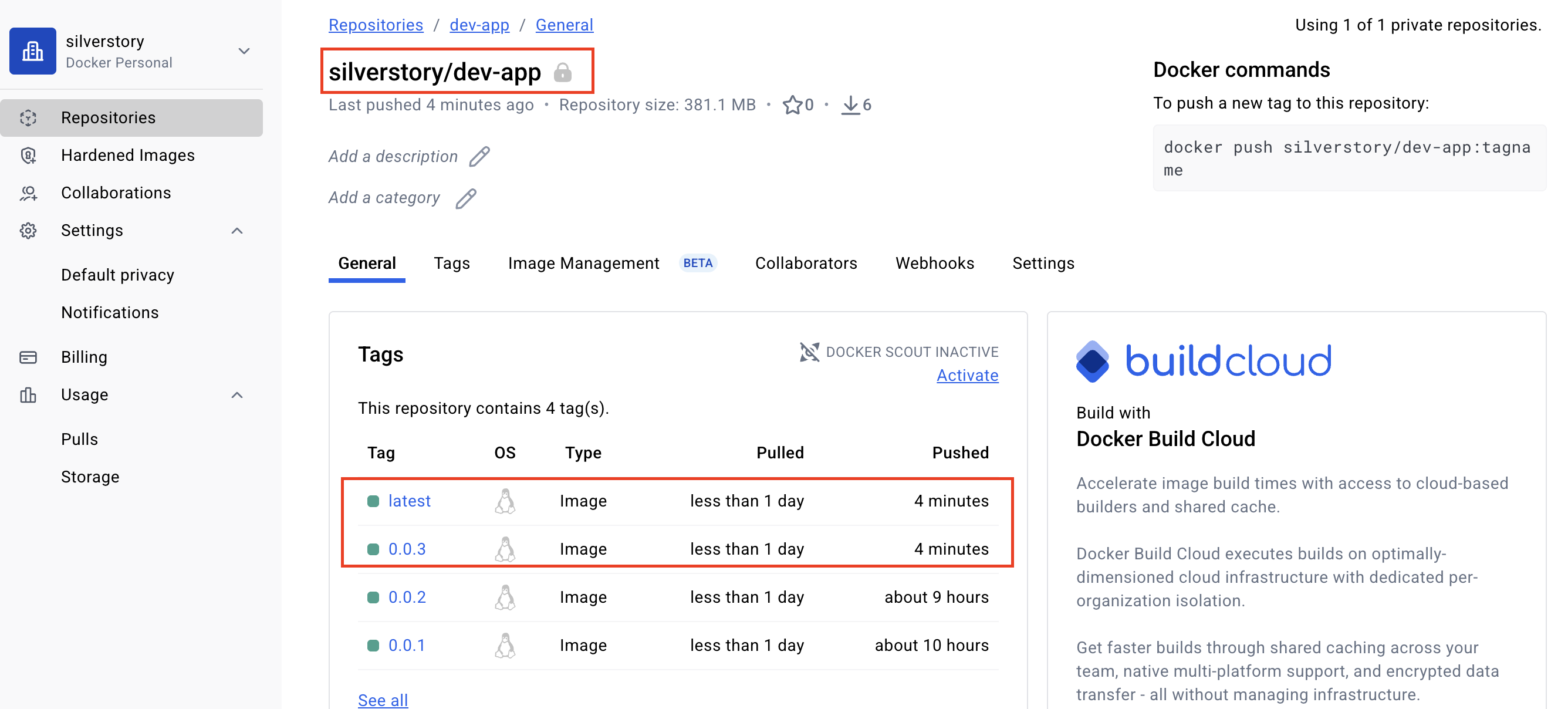
Docker Hub - silverstory/dev-app(Private repository)

'CICD' 카테고리의 다른 글
| CI/CD 5주차(Argo CD)[2] - Argo Rollout (0) | 2025.11.15 |
|---|---|
| CI/CD 5주차(Argo CD) - 접근제어, SSO (0) | 2025.11.15 |
| CI/CD 4주차(Argo CD) (0) | 2025.11.09 |
| CI/CD 2주차 (0) | 2025.10.26 |
| CI/CD 1일차 (0) | 2025.10.18 |